Exercise 2. Building a plate from a PDF machining drawing
| Item | Detail |
|---|---|
| Input files | 02-cover-drawing.pdf (two 1:1 vector drawings — data logger cover + sensor-extension logger cover) |
| Time | 3 min (building the two plates takes under a second) |
| What you end up with | Two documents (cover_logger, cover_sensor), each with one Body + a Params spreadsheet |
| What you learn | How to have the AI read a PDF drawing, how to confirm the scale, and how to fill in a dimension the drawing lacks (thickness) as an assumption with its reasoning recorded |
In Exercise 1 you read out every dimension yourself. This time you hand over a drawing file and let the AI read the dimensions. A vector PDF stores its circles, rectangles and dimension text as coordinates, so the AI can extract them and convert to mm.
Original and finished
Section titled “Original and finished”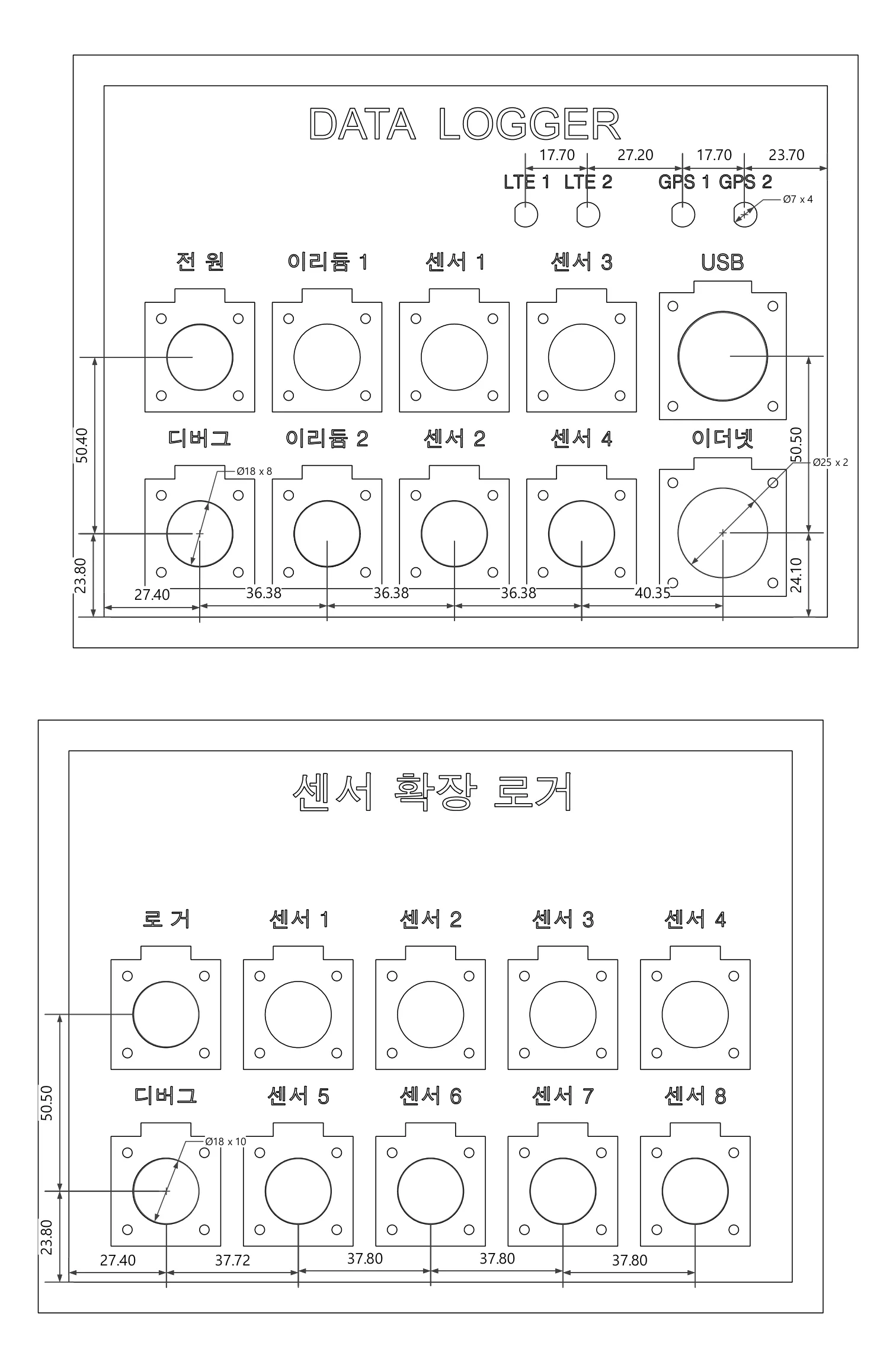
| File | Description | Size | |
|---|---|---|---|
| Original | 02-cover-drawing.pdf | The PDF drawing | 776 KB |
| Finished | 02-cover_logger-done.FCStd | Data logger cover | 32 KB |
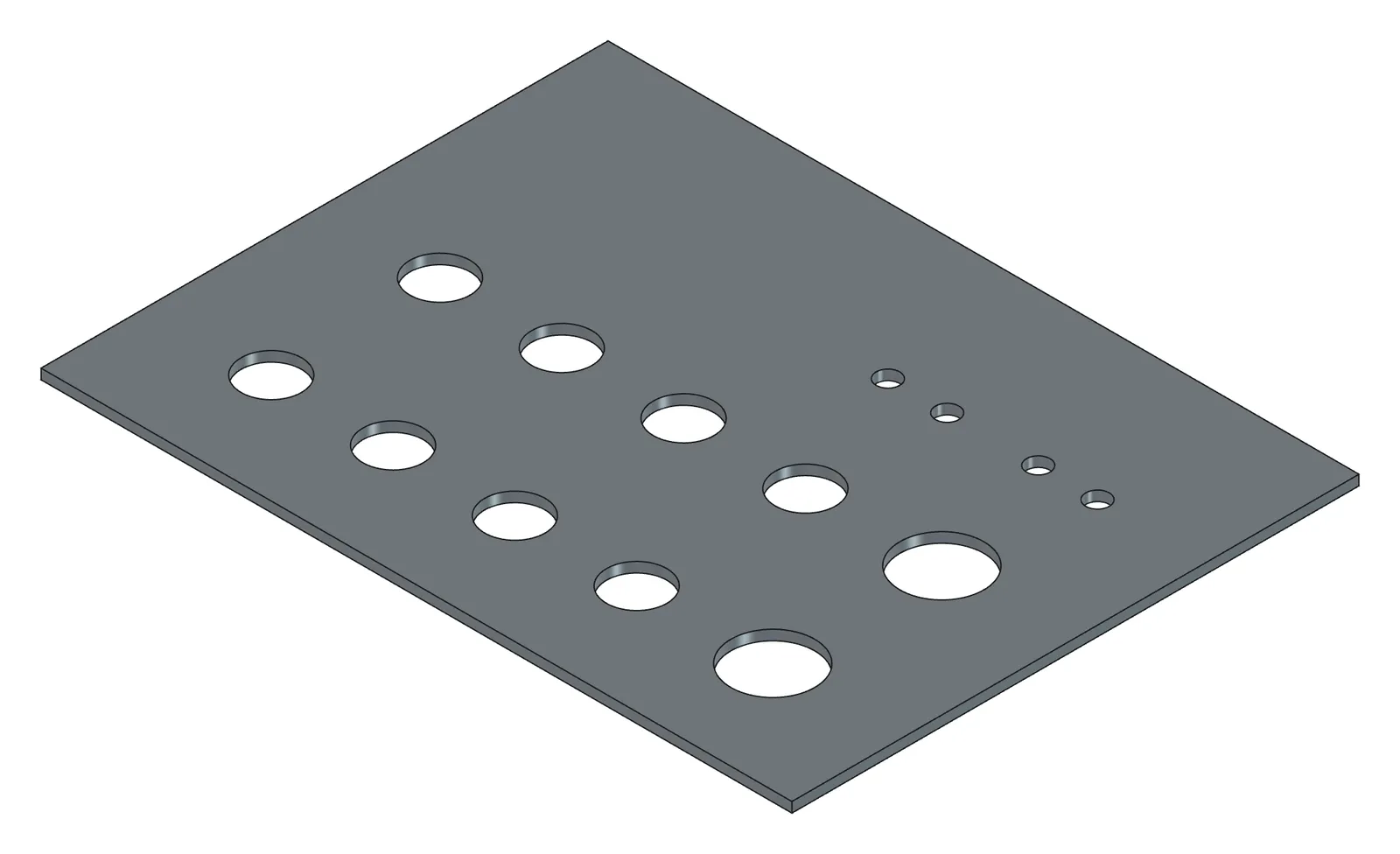
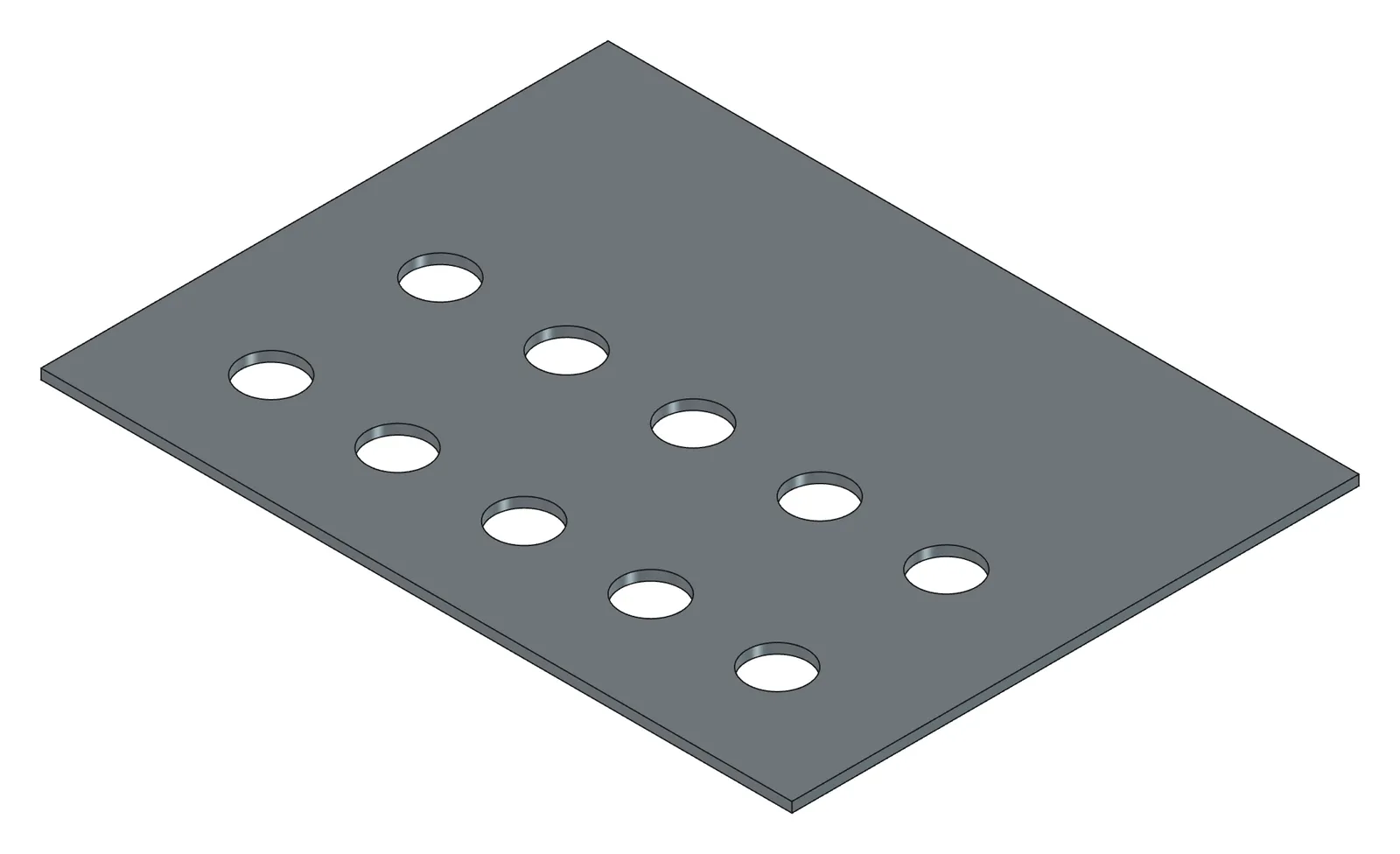
| Finished | 02-cover_sensor-done.FCStd | Sensor-extension cover | 19 KB |
| Finished | 02-Cover_DataLogger-done.step | STEP | 28 KB |
| Finished | 02-Cover_SensorExt-done.step | STEP | 22 KB |
- Launch FreeCAD 1.1.3. You want
[CAD X-ray] 서버 시작 http://127.0.0.1:9877 (툴 36개)in the Report view. - Download the PDF into a folder with a short path (for example
C:\cad\02-cover-drawing.pdf). Keep the filename exactly as the release gives it. - In PowerShell, move to that folder and type
claudeto open your AI tool (Codex and Gemini CLI open in the same folder). - Close any other FreeCAD documents. That cuts down on the AI asking which document to build in.
1. Have it read the drawing and give you a table first
Section titled “1. Have it read the drawing and give you a table first”Read C:\cad\02-cover-drawing.pdf and show me a table per plate of «values read / values assumed / basis» before anything else.What the AI does — reads the PDF’s vector elements (a circle is a path of four curves, a rectangle is re) and its dimension text, converting at 1 pt = 25.4/72 mm. Three things should appear in the table without being asked for: the scale (the dimension text 36.38 matching the 36.38 between circle centres means 1:1), anywhere the written dimension and the drawn position disagree (the first hole of drawing 2, off by 0.4 / 2.2 mm), and values it had to assume because the drawing lacks them (plate thickness, Ø7 hole height).
How to check — the table should show a plate size of 224.28×169.37, hole types Ø18 · Ø25 · Ø7, and exactly two items marked “assumed”: the thickness and the Ø7 height. If it says the scale is not 1:1, your PDF may be a reduced print; get the original file again.
2. Answer the assumptions and have it build
Section titled “2. Answer the assumptions and have it build”Written dimensions win, thickness 3 as a parameter, don't machine the flange rectangle or the small holes inside it. Build both plates like that: Body Cover_DataLogger in document cover_logger, Body Cover_SensorExt in document cover_sensor.What the AI does — for the data logger plate it stacks four sketches (the plate rectangle plus three hole groups) with one Pad and three Pockets, for the sensor-extension plate one Pad and one Pocket, recomputing after each feature to confirm validity. Hole centres are the inner-rectangle dimensions plus 8.79; the four antenna hole x coordinates (120.40 / 138.10 / 165.30 / 183.00) work back from the inner rectangle width 206.70 minus 23.70, at spacings of 17.70 / 27.20 / 17.70. The sensor plate’s x coordinates come out as five columns: 27.40 / 65.12 / 102.92 / 140.72 / 178.52. The dimensions go into the Params spreadsheet as aliases, so changing the thickness later brings everything with it.
How to check — in the model tree, Cover_DataLogger should contain PadPlate, Pocket_D18, Pocket_D25 and Pocket_D7, and Cover_SensorExt should contain PadPlate and Pocket_D18, with nothing marked red. Open the Params sheet, change thickness to 5 and recompute (F5 or Ctrl+R) to see the plate thicken. Then put it back to 3. Count the sensor plate’s holes from above (number key 2) and confirm there are ten.
3. Look, then save
Section titled “3. Look, then save”Show me a top view of both documents. If they look right, save them to C:\cad\cover_logger.FCStd and C:\cad\cover_sensor.FCStd.What the AI does — puts the screenshots in the conversation and saves only after you say they are right. The rule is that the AI never saves a document until told to.
How to check — overlay the hole layout in the screenshot on the drawing. In particular, check that the first hole of the sensor plate sits at the “written dimension” position.
Checking your result
Section titled “Checking your result”| Criterion | Value |
|---|---|
| Plate bbox | 224.28 × 169.37 × 3.0 |
| Sketch DoF | all 0 |
| Shape validity | valid |
| Feature count | data logger 4 (Pad 1 + Pocket 3), sensor-extension 2 (Pad 1 + Pocket 1) |
| Parameters | Params holds plate_w, plate_h, inset, thickness, hole_d18 (+ hole_d25, hole_d7) |
There is no original STEP in this exercise, so there is no volume comparison. If the bbox, the hole count and the screenshot match the drawing, you succeeded.
When it doesn’t work
Section titled “When it doesn’t work”- “I can’t read the PDF” — a scan (an image PDF) has no vectors and this approach will not work. Read the dimensions out as in Exercise 1, or get the original CAD drawing.
- It says the scale is not 1:1 — the PDF was reduced for printing. The AI tells you the ratio between the dimension text and the drawn length, so say “convert at that ratio and carry on”.
- The holes land outside the plate — the inner-rectangle datum (the 8.79 offset) got dropped. Say “check you added the 8.79 inset to the hole coordinates”.
- The AI keeps asking because several documents are open — just give it the name. Naming it from the start (“in a new document cover_logger”) avoids the question.
- The plate built but a feature is red — say “find the cause of the red feature and fix it” (see Exercise 6).
Going further
Section titled “Going further”- Change
Params.thicknessto 2 and recompute. Check the hole Pockets still go through. - Ask for 0.5 mm chamfers on the four Ø7 antenna holes. Stating the edge condition is enough: “0.5 chamfer on the top edge of the Ø7 holes”.
- Put both plates in one document and produce a 2D drawing (Exercise 7).
| What runs behind the scenes | |
|---|---|
| Reading the drawing | The AI tool itself (extracting vectors and text with pymupdf) |
| Building the model | build_features (rect and circles profiles, Params aliases) |
| Checking | inspect_object, get_screenshot, save_document |
Original session log: https://github.com/WaveSimm/cadxray/blob/master/examples/cover_from_pdf_drawing.py