Exercise 6. Fixing a red sketch
| Item | Detail |
|---|---|
| Input files | none (the AI creates four practice sketches) |
| Time | 5 min (diagnosis, candidates and application each take under a second) |
| What you end up with | Four sketches at DoF 0 with no conflicts and no open vertices, and a Pad that recomputes cleanly |
| What you learn | The three causes of a red sketch (over-constrained, under-constrained, open vertices), the conversation of picking fixes by number, and confirming «what got fixed / what newly broke» with recompute tracking |
When a sketch goes red in FreeCAD you have to click through the constraint panel hunting for the cause. In this exercise you hand that job to the AI. It reads the sketch directly and tells you «which constraint numbers conflict», «how many degrees of freedom are left» and «which endpoint is apart», then offers fixes as a numbered list. You just pick numbers. The AI applies only what you picked, and rolls back on its own if the result gets worse.
Original and finished
Section titled “Original and finished”You can have the AI build the practice sketches, or start from the practice file below.
| File | Description | Size | |
|---|---|---|---|
| Practice | 06-sketch-before.FCStd | The sketch before fixing — DoF 19, 4 open vertices | 4 KB |
- Launch FreeCAD 1.1.3. You want
[CAD X-ray] 서버 시작 http://127.0.0.1:9877in the Report view (View → Panels → Report view). - Open your AI tool in a terminal (PowerShell). For Claude Code that is
claude; for the others see Connect an AI tool. - In FreeCAD, File → New for an empty document. Closing the others stops the AI asking which one.
1. Build the practice sketches
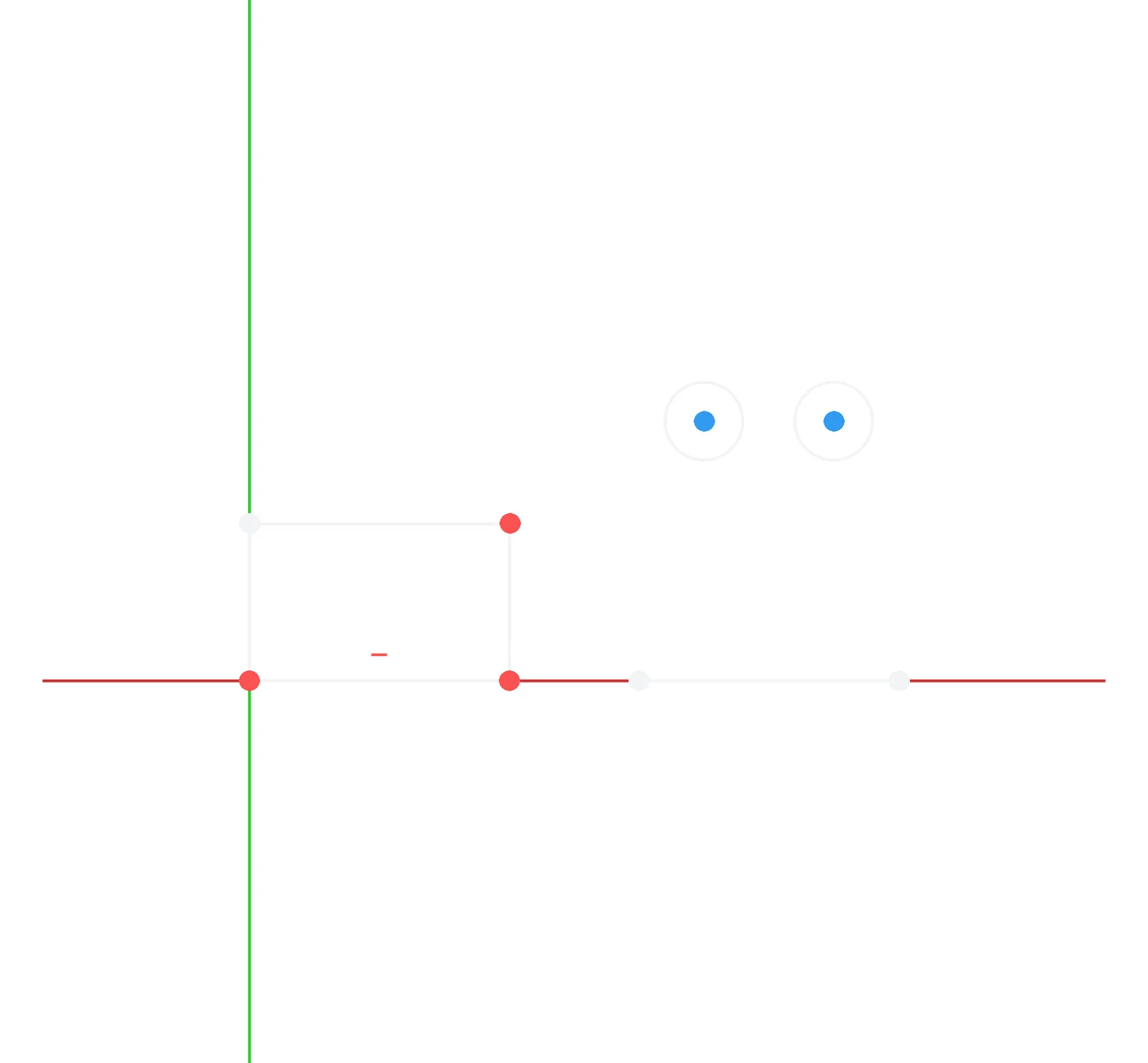
Section titled “1. Build the practice sketches”In the open new document, make one practice Body and four deliberately broken sketches on XY:1. Sk_Under: a rectangle missing two dimensions2. Sk_Conflict: a rectangle with two lengths, 40 and 45, on the same edge3. Sk_Open: a rectangle with one corner 0.5 mm open (no horizontal/vertical constraint on the open edge) + a Pad of 10 from it4. Sk_Fixes: a rectangle with a 0.02 mm gap + a line tilted 0.3° + two equal-length lines + two equal-radius circlesRecompute and tell me which objects are red.What the AI does — runs Python inside FreeCAD to create the Body and the four sketches, then recomputes. It then reads the document structure and reports the problem objects.
How to check — look for red marks on Sk_Conflict, Sk_Open and Pad (the one built from Sk_Open) in the model tree. Sk_Under is not red, but open it and it is not green (fully constrained) either.
2. Ask what the problem is
Section titled “2. Ask what the problem is”Why is Sk_Conflict red? Give me the offending constraint numbers as in the GUI constraint panel.What the AI does — reads the sketch’s solver state. Two dimensions with different values come back as «over-constrained (-4)» with both constraints in the conflicting list. The AI gives you the constraint numbers as the GUI constraint panel shows them.
How to check — double-click the sketch to open it and, in the constraint panel on the left, confirm the two numbers the AI named are marked red and carry the values 40 and 45.
3. Get the fix candidates and pick by number
Section titled “3. Get the fix candidates and pick by number”Show me fix candidates as a numbered list. Don't apply anything until I pick.What the AI does — applies each candidate to a copy of the sketch, measures the effect (change in DoF and state) and attaches a confidence level. The original is untouched. The two conflicting dimensions come back tied together as an «either/or».
Delete the 45. The design dimension is 40.How to check — the AI reports «state 0, DoF 0» after applying, and the red mark on Sk_Conflict disappears from the tree.
4. Close the open vertices
Section titled “4. Close the open vertices”Why did the Pad fail? Numbered candidates for fixing Sk_Open.What the AI does — reads the Pad’s error string and the sketch’s open vertices (one gap is reported as two endpoints) and offers a «make the two nearby endpoints coincident» candidate, along with the distance (0.5 mm).
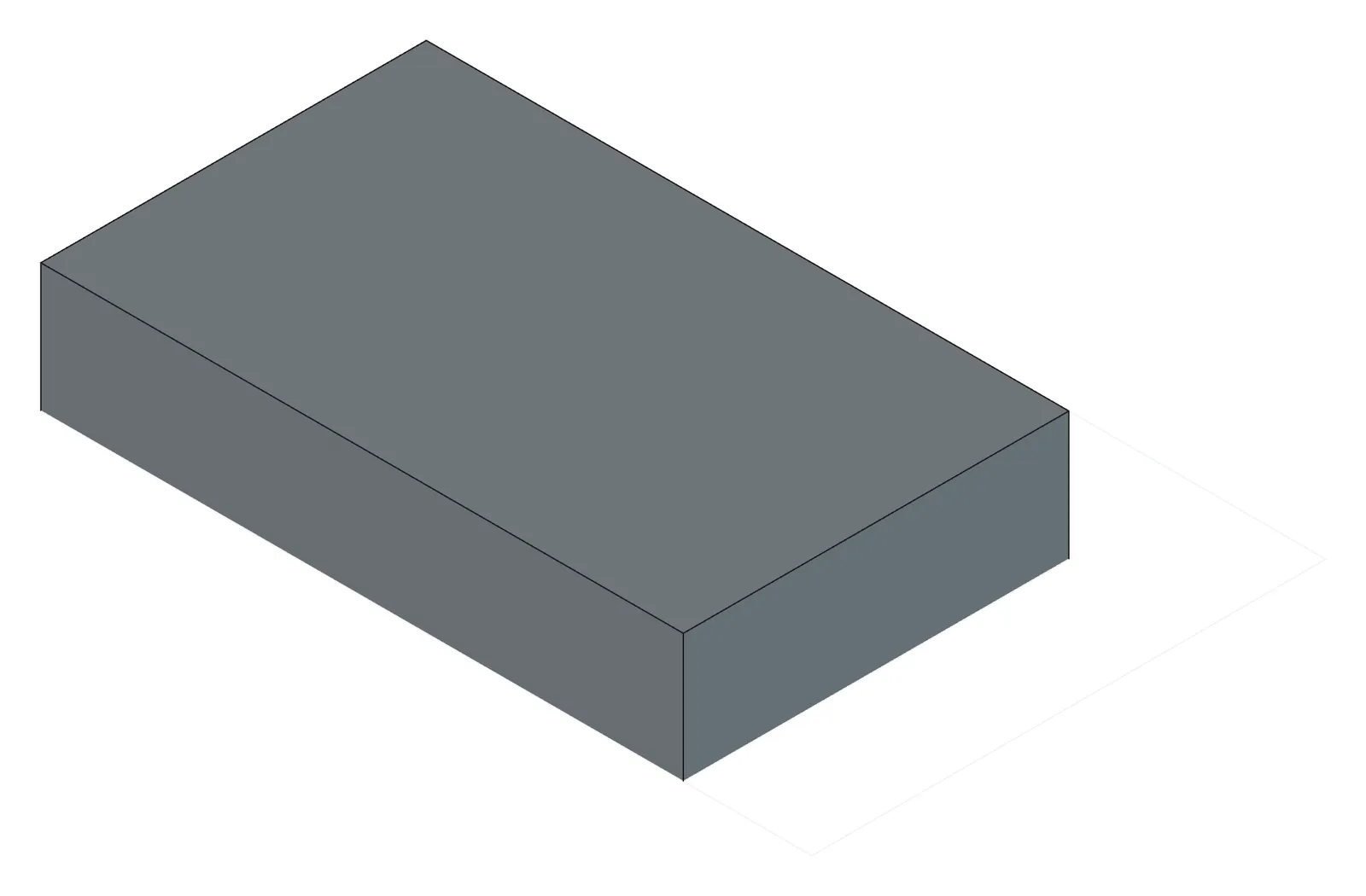
Apply the endpoint join, recompute, and check the Pad is back. Iso screenshot if so.How to check — the AI reports the recompute tracking result as «resolved: Pad, newly broken: none». A 10 mm thick plate in the screenshot means success. (If images do not appear in Codex or Gemini CLI, look at the FreeCAD window directly.)
5. Clear the small stuff in one pass
Section titled “5. Clear the small stuff in one pass”Show me every fix candidate for Sk_Fixes and count them by type.What the AI does — produces candidates for joining the gap, missing horizontal and vertical constraints, equal length and radius constraints, and dimensions for the remaining degrees of freedom. On this practice sketch, expect 1 endpoint join, 3 horizontal/vertical, 4 equals (3 lines, 1 circle pair — the «equal» between rectangle sides overlaps the horizontal/vertical constraints and becomes redundant if applied together, so leave those out), plus several low-confidence added dimensions.
Apply only the recommended ones, without the added dimensions.How to check — read the AI’s report for 0 open vertices and reduced DoF. Open the sketch and confirm the tilted line is horizontal and the gap at the corner has closed.
6. Finish off the remaining degrees of freedom
Section titled “6. Finish off the remaining degrees of freedom”Remove the 2 remaining DOF in Sk_Under. It's 60 wide, 40 tall.What the AI does — adds the two missing dimensions with the values you gave and recomputes.
How to check — open the sketch and it is green (fully constrained), with «Fully constrained» in the status bar.
Checking your result
Section titled “Checking your result”| Sketch | Success criterion |
|---|---|
| Sk_Under | DoF 0, fully constrained |
| Sk_Conflict | Solver state 0, 0 conflicting constraints, dimension 40 remaining |
| Sk_Open + Pad | 0 open vertices, Pad healthy (not Invalid), «resolved: Pad» in the recompute tracking |
| Sk_Fixes | 0 open vertices, DoF reduced, the original constraint count unchanged before and after diagnosis (evaluating on a copy never touches the original) |
Say “show me the whole document structure again” for a final confirmation of zero problem objects.
When it doesn’t work
Section titled “When it doesn’t work”- «Cannot connect to FreeCAD (127.0.0.1:9877)» — FreeCAD is closed or the server did not start. Check the Report view, and turn on Auto Start in the CAD X-ray menu if it is off. Troubleshooting
- With several documents open the AI asks which one. Give it the name or close the others.
- It refuses to apply, saying «the sketch changed in the meantime» — you edited the sketch in the GUI after receiving the candidates. Just get the candidates again.
- DoF comes back «null» or something strange — when the solver has failed (conflicting or malformed constraints) the DoF cannot be trusted. Clear the conflict first, then diagnose again.
- Applying broke something else — the AI rolls back on its own when the state gets worse and reports the error. Apply candidates one at a time to narrow it down.
Going further
Section titled “Going further”- Delete one dimension from the plate sketch you built in Exercise 1, then ask the AI «what is missing» and restore it.
- Open an FCStd you abandoned half-finished some time ago and ask for a diagnosis report only: “find every problem object and just explain the causes — don’t fix anything”.
- Create a non-sketch shape error (a Pocket of zero thickness, say) and watch the AI respond with a Python fix rather than sketch candidates.
What runs behind the scenes
Section titled “What runs behind the scenes”| Step | Tool |
|---|---|
| Structure and problem objects | get_document_graph |
| Sketch diagnosis | get_sketch_diagnostics |
| Candidate list and application | suggest_sketch_fixes → apply_sketch_fixes (a fingerprint confirms it is the same sketch) |
| Recompute tracking and confirmation | tracked_recompute, get_screenshot |
| Non-sketch fixes | execute_code |
The diagnostic order in full: CLAUDE.md, the «진단 워크플로» section