Exercise 10. Building an observation frame from a DXF (the full run)
| Item | Detail |
|---|---|
| Input file | 10-pole-frame-drawing.dxf (a 1/40 drawing; model coordinates are real mm) |
| Time | 10 min (24 s to build the frame; the rest is confirming assumptions) |
| What you end up with | Seven part Bodies (column, cross pipe, square tube, gusset, base plate, cap, foundation) + a frame group of 27 Links, and a parameter table |
| What you learn | How to decide what to follow when the drawing, the bill of materials and the notes disagree; the conversation of receiving the AI’s «assumptions» as a table and approving them one at a time; the one-Body-per-type plus Link-instance structure |
Every exercise so far was a single part. This time you build a structure of seven part types and 27 instances from a real site drawing (an observation frame with a square tube attached). The specifications are scattered across three places in the drawing — the BOM text, the dimensions and the geometry — and they disagree in places. So half of this exercise is not modeling but receiving what the AI read and what it assumed as a table, and confirming it.
Original and finished
Section titled “Original and finished”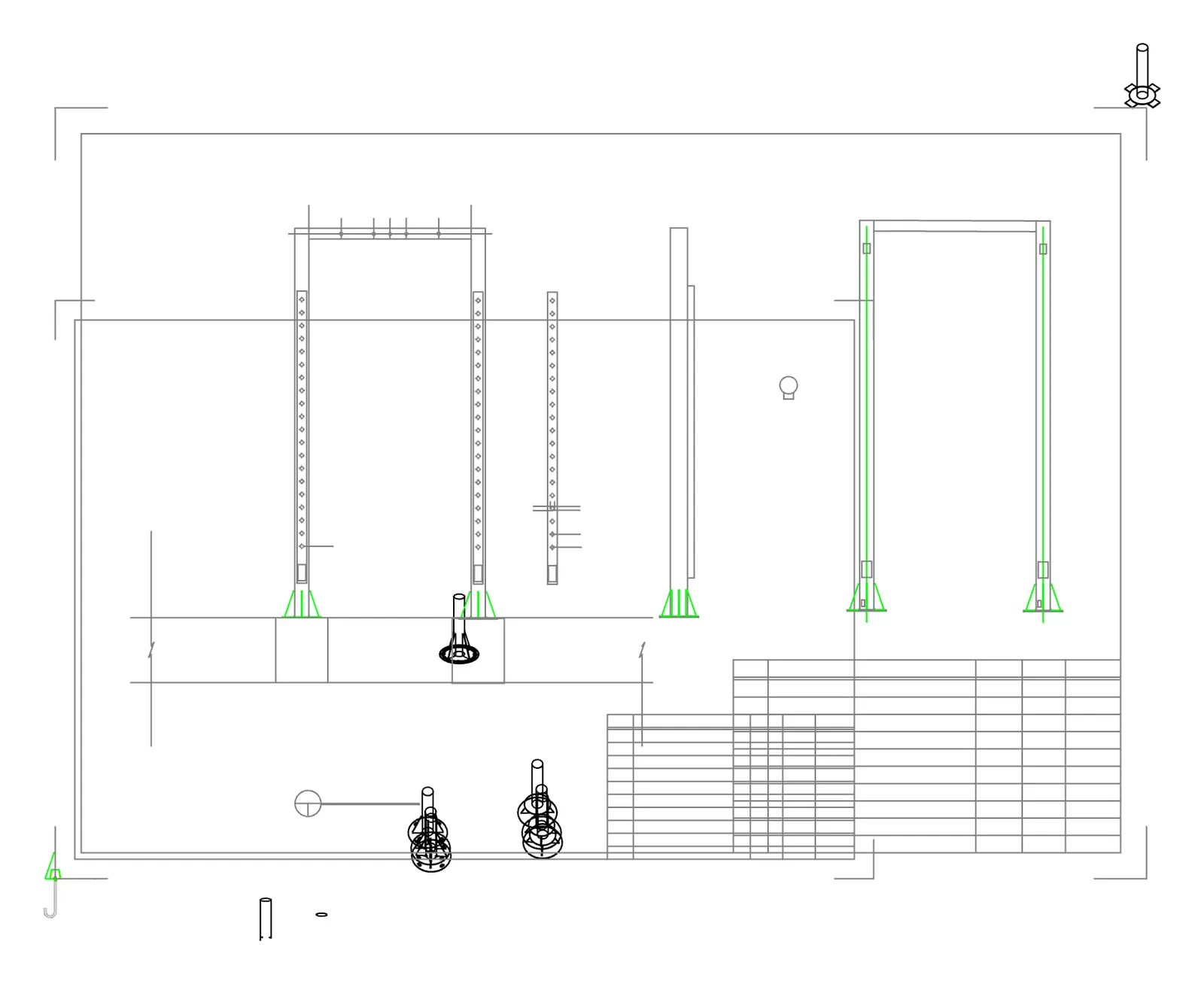
| File | Description | Size | |
|---|---|---|---|
| Original | 10-pole-frame-drawing.dxf | DXF | 751 KB |
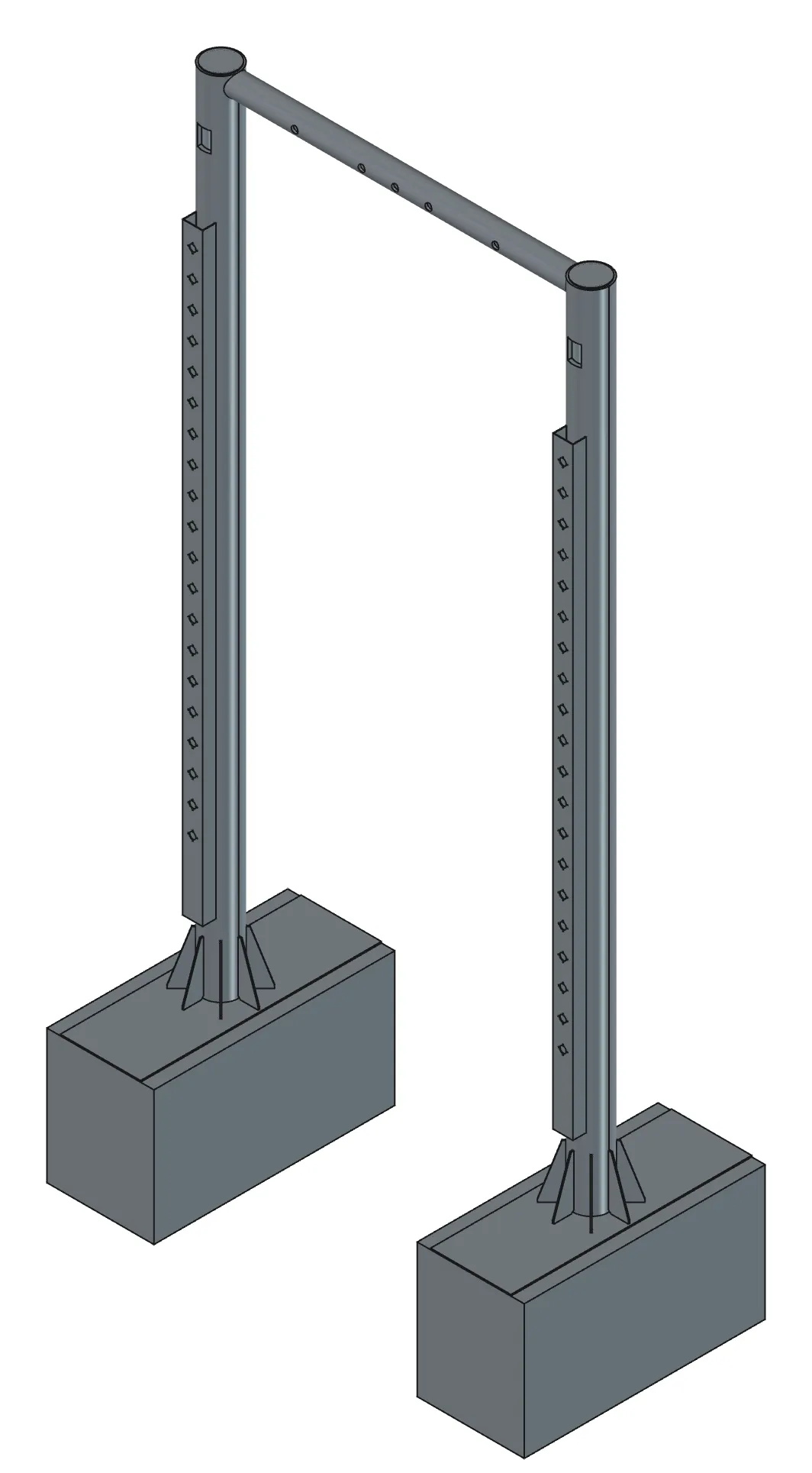
| Finished | 10-pole_frame-done.FCStd | The whole frame | 675 KB |
| Finished | 10-pole_frame-done.step | STEP (a compound of the 27 Links) | 1.0 MB |
- Launch FreeCAD 1.1.3 and confirm
[CAD X-ray] 서버 시작in the Report view. - Open your AI tool. Reading the DXF needs
ezdxfin the AI tool’s Python. If it is missing, the AI offers to install it — say yes. - Download the DXF and note the path (for example
C:\work\pole\10-pole-frame-drawing.dxf). - Open a new document.
1. Read the drawing and get the «read / assumed» table
Section titled “1. Read the drawing and get the «read / assumed» table”Read C:\work\pole\10-pole-frame-drawing.dxf (with ezdxf, not FreeCAD's import, including the bill-of-materials text) and show me a table per part of «value read / value assumed / basis». List anywhere the drawing and the BOM disagree separately.What the AI does — extracts LWPOLYLINE, CIRCLE, DIMENSION (measured values), TEXT, MULTILEADER and blocks (BRACKET1) from the DXF modelspace, and draws the regions to compare visually. It reads the pipe specifications from the BOM text (PIPE-250A SCH160 = OD 267.4×28.4t, PIPE-150A = OD 165.2×18.2t). The column is drawn as 216 (200A) in the geometry, disagreeing with the BOM; that kind of disagreement goes in the table.
How to check — you should get a table like the one below. These are the values confirmed in the original session.
2. Approve and correct the assumptions
Section titled “2. Approve and correct the assumptions”Follow the BOM (267.4) for the columns, square tube thickness 4.5 is fine, foundation depth 1500, straight-line gusset snipe is fine, leave out the two unclear dimensions. Show me the parameter table with those values.What the AI does — organises the approved values into a list of parameter names and values (pole_od, pole_t, pole_h, span, bar_od, tube_w, hole_d, hole_pitch, found_h and the rest). That list becomes the Params spreadsheet later.
How to check — confirm found_h changed to 1500, and that the AI has worked out the column centre distance (span + pole_od = 2767.4).
3. Have it build the seven parts and assemble them with Links
Section titled “3. Have it build the seven parts and assemble them with Links”Put the parameters into a Spreadsheet Params, build the seven Bodies (Pole, Bar, Tube, Gusset, BasePlate, CapPlate, Foundation) and assemble them with Links in a Frame group. Hide the original Bodies, recompute, tell me whether anything is Invalid and the overall bbox, and show me iso.What the AI does — builds one Body per part type from the values in the step 1–2 tables. The column is a Pad of two circles (OD and ID as Params.pole_od expressions) with the inspection port and cable entry Pockets cutting only the front (−Y) wall. The cross pipe is padded at stock length 2557.1, coped at both ends to the column curves (Ø267.4 circles at ±1383.7 from centre) and given five Ø50 holes. The square tube is 150×100×4.5 padded to 4500, coped on the back to the column curve, with twenty Ø50 plus eighty Ø8 holes on the front (100 in one sketch). The gusset is a BRACKET1-shaped polygon; base, cap and foundation are one Pad each. Then 27 App::Links (2 columns, 2 caps, 2 base plates, 2 foundations, 2 tubes, 16 gussets, 1 cross pipe) are placed by Placement. Computed values such as the column centre distance 2767.4 and coping depth 28.6 are used at the precision the AI produced.
How to check — the tree shows Params, the seven hidden Bodies, and 27 Links under Frame. In the screenshot the cross pipe should span the two columns and the square tubes should sit on the front faces. A foundation underside at z −1500 means the step 2 assumption went in.
4. Check for interference and save
Section titled “4. Check for interference and save”Check the parts in Frame for interference. The coped joints (cross pipe–column, square tube–column) must be touching, not overlapping. If it's clean, save to C:\work\pole\pole_frame.FCStd.What the AI does — checks minimum distance and interference volume for the 351 part pairs. Pairs whose bounding boxes are apart (309 of them) are skipped without computation. It saves if there is no interference.
How to check — the coped joints should be «touching (distance 0, interference 0)» and the interference volume should be 0.
Checking your result
Section titled “Checking your result”| Item | Success criterion |
|---|---|
| Reading | Two pipe specifications from the BOM, the 2500 dimension, two MULTILEADER openings and the BRACKET1 block all read. The front view’s 216 vs the BOM’s 267.4 disagreement reported |
| Parameters | Registered as aliases in the Params spreadsheet, with feature dimensions linked by expression |
| Parts | All 7 Bodies valid, sketch DoF 0 |
| Assembly | 27 Links, 0 Invalid, coped joints touching with 0 interference |
| Assumptions | Every value the AI decided (square tube thickness, foundation depth, snipe approximation) appeared in the table and was approved. The two unclear dimensions are absent from the model |
When it doesn’t work
Section titled “When it doesn’t work”- Opening the DXF in FreeCAD took over two minutes and produced hundreds of objects — FreeCAD’s DXF import turns even the silkscreen and dimension polylines into Draft objects. That is why you pull only what you need with ezdxf. Same reason as Exercise 3.
- The AI used the front view’s 216 as the column diameter — tell it again to follow the BOM. When the drawing and the BOM disagree, a person decides which to follow.
- FreeCAD froze while building everything at once — a long Python run cannot be interrupted. Wait or force-quit, then ask again part by part.
- It failed trying to put separated Pads in one Body — you cannot build 8 gussets as 8 Pads in one Body. Gussets are one Body plus 8 Links.
- The interference check takes a long time — 27 parts takes seconds, but for a bigger assembly narrow the part names and call it several times.
- The Ø symbol shows as “□” or “%%C” — a DXF font problem mangling the diameter symbol. The values are still diameters.
Going further
Section titled “Going further”- Build an assembly drawing of the Frame group (front, plan, 2 details, 13 dimensions) the way Exercise 7 does. The original session took 87 seconds.
- Apply 500 N sideways to one Ø50 hole in the square tube the way Exercise 9 does, and look at the stress around the hole.
- Ask for total mass and centre of gravity with “the columns in STEEL and the foundations at density 2.4”.
- Change span to 3000 in the Params sheet and recompute, then ask the AI whether the cross pipe and the Link positions followed — and if not, where to switch to expressions.
What runs behind the scenes
Section titled “What runs behind the scenes”| Step | Tool |
|---|---|
| Reading the DXF | Python on the AI tool side + ezdxf (outside FreeCAD) |
| Parameters and stacking features | build_features (params → Spreadsheet, circles, polygons, rect, pocket through/midplane) |
| Link placement and grouping | execute_code (App::Link, Placement) |
| Interference and mass | check_interference, get_mass_properties |
| Checking and saving | tracked_recompute, get_screenshot, save_document |
Original session log: examples/pole_frame_from_dxf.py