Exercise 11. Pressure port from a drawing, then a 200 kg strength check
| Item | Detail |
|---|---|
| Input files | 11-pressure-port-drawing.pdf (one assembly section drawing of an integrated pressure port, vector PDF) |
| Time | 10 min (modelling 1 min, meshing 6 s, solving 1 min at about 139,000 nodes) |
| What you end up with | Document pressure_port — four bodies (base, core, outer tube, connector) + Spreadsheet Params, analysis OTBAP_200kg (stress and displacement colour maps, safety factor report) |
| What you learn | Measuring geometry from a vector drawing whose dimension text is not readable, keeping what the drawing does not say as stated «assumptions», fixing a dark viewport, matching material cards, reading «whose yield strength» a multi-part safety factor refers to, and interpreting a singularity warning |
Exercise 2 built a single plate from a drawing. This time it is a real product: the air port of a meteorological barometer. From the top down it has a vent, a baffled outer tube, a hollow rod, a base holding the PCB, and an M16 connector, all on one axis. The drawing is a single assembly section, and only the overall height and outer diameters are dimensioned. The AI measures the rest from the picture and reports measured and assumed values separately. Once the model exists, you ask whether it survives 200 kg pressed on the top while the connector is held.
Original and finished
Section titled “Original and finished”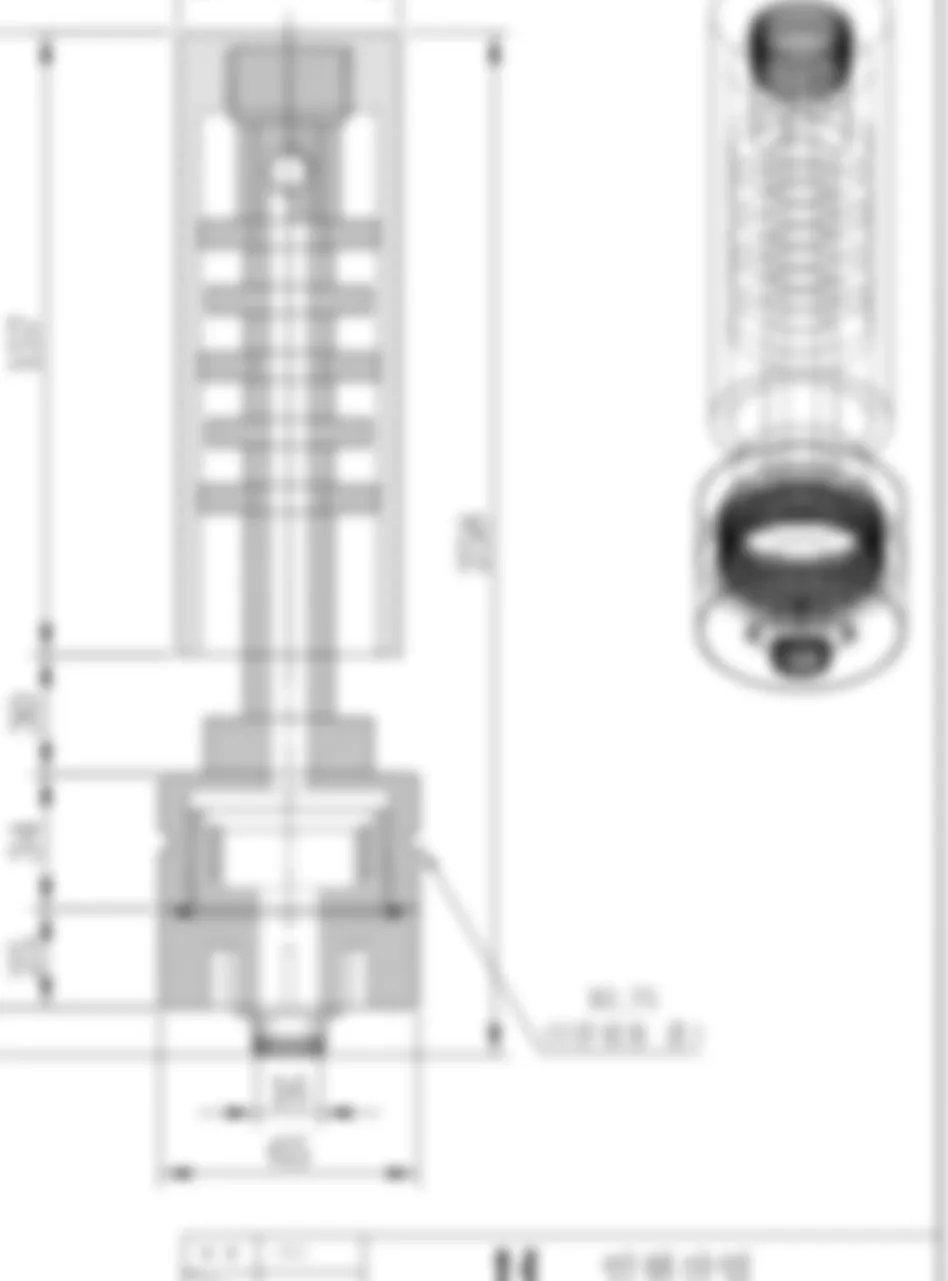
| Kind | File | Description | Size |
|---|---|---|---|
| Original | 11-pressure-port-drawing.pdf | Assembly section PDF — the public copy is blurred so only the shape of the drawing shows (you need the original to read dimensions and follow along) | 81 KB |
| Finished | 11-pressure_port-model.FCStd | Four bodies + Params (no analysis) | 108 KB |
| Finished | 11-PressurePort-done.step | STEP (four parts) | 87 KB |
| Practice | 11-pressure_port-done.FCStd | Model + analysis result objects (139,000 nodes) | 57 MB |
Preparation
Section titled “Preparation”- Start FreeCAD 1.1.3 and confirm
[CAD X-ray] server startedin the report view. - Download the PDF into a folder with a short path (for example
C:\cad-pressure-port.pdf). - In PowerShell, go to that folder and type
claudeto open the AI tool. - Close any other documents open in FreeCAD.
1. Have it read the drawing and build
Section titled “1. Have it read the drawing and build”Build C:\cad-pressure-port.pdf in FreeCAD from the drawing.What the AI does — This PDF is vector, but even the dimension text is drawn as lines, so it cannot read the numbers as text. It looks at the picture instead. First it reads the written dimensions (258, 157, Ø56, Ø65 …) from the page image, then extracts the line segments to fix the scale: the 56 mm tube is drawn 106.6 pt wide, so 1 mm = 1.9036 pt, and the scale is confirmed when 157, 30, 34, 25 and 12 all agree. With that scale it measures the undimensioned interior (tube bore, baffle thickness and pitch, rod diameter, PCB cavity). Before building it shows a table of read / measured / assumed values and asks you to confirm.
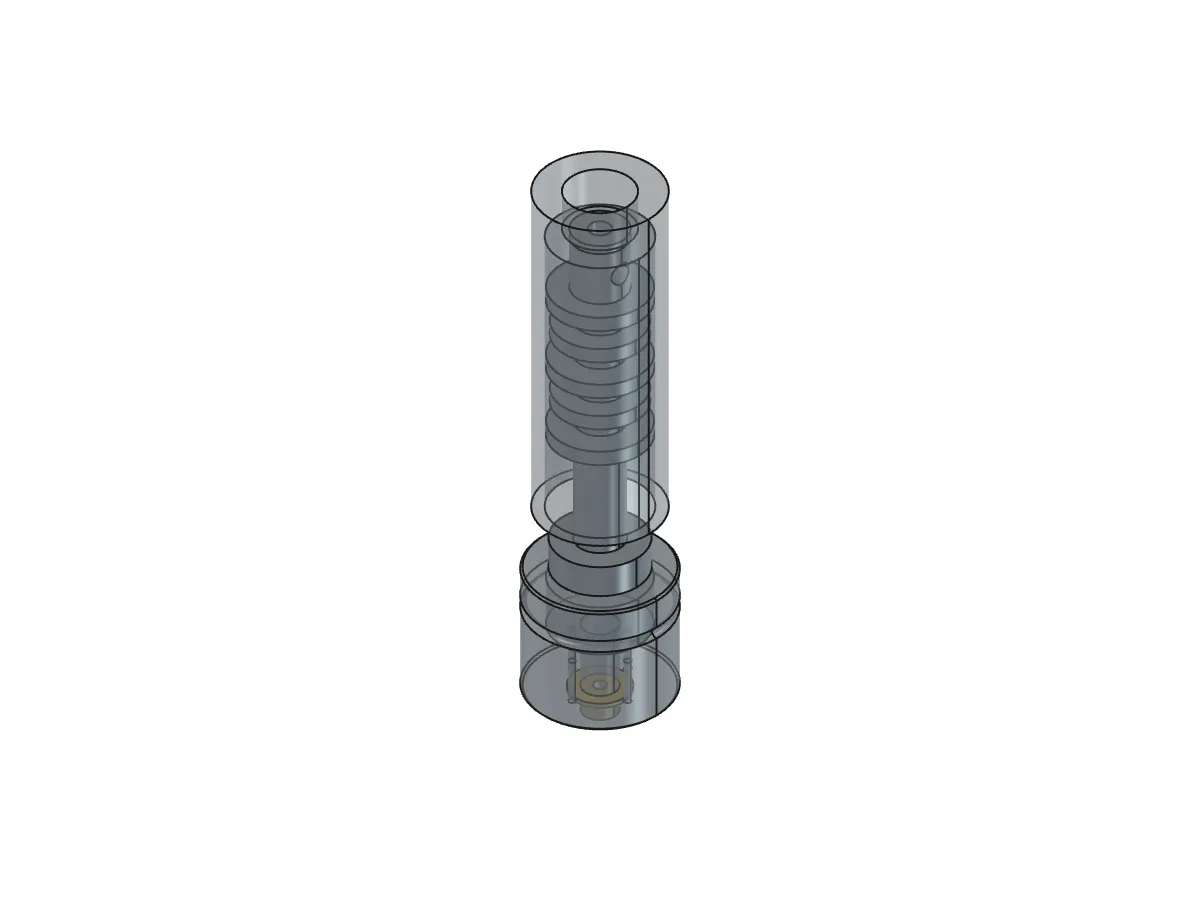
Check — Four bodies appear in the tree and the bbox is 65 × 65 × 258 (z −12 to 246). Each body is one revolution as its backbone, with groove and screw-hole pockets on the base and a cross-hole pocket on the core. If you dislike any of the six assumptions, say so now — for example “baffles at Ø45 as drawn”.
2. Fix a dark viewport
Section titled “2. Fix a dark viewport”The background is too dark, I can't make anything out.What the AI does — It turns off the gradient background in FreeCAD preferences and sets it to white (Display > 3D View > Background colour; it stays after a restart). Then it makes the outer tube 65 % translucent and the base 40 % so the interior shows, and takes a fresh isometric screenshot. The «Finished» picture above is that view.
3. Match the material cards
Section titled “3. Match the material cards”Match the material cards.What the AI does — It takes «material: acetal (black)» from the title block, finds POM-Homopolymer-Generic among the 200 cards in the FreeCAD 1.1 material library and assigns it to the base, core and tube, and Brass to the connector (the body’s ShapeMaterial). It shows the card properties next to the analysis tool’s material table.
Check — Select a body and the property view shows the card name under Shape Material. If the card’s yield strength differs much from the table, say “use the card values for the analysis” and it passes them as a dict.
4. Hold the connector and press with 200 kg
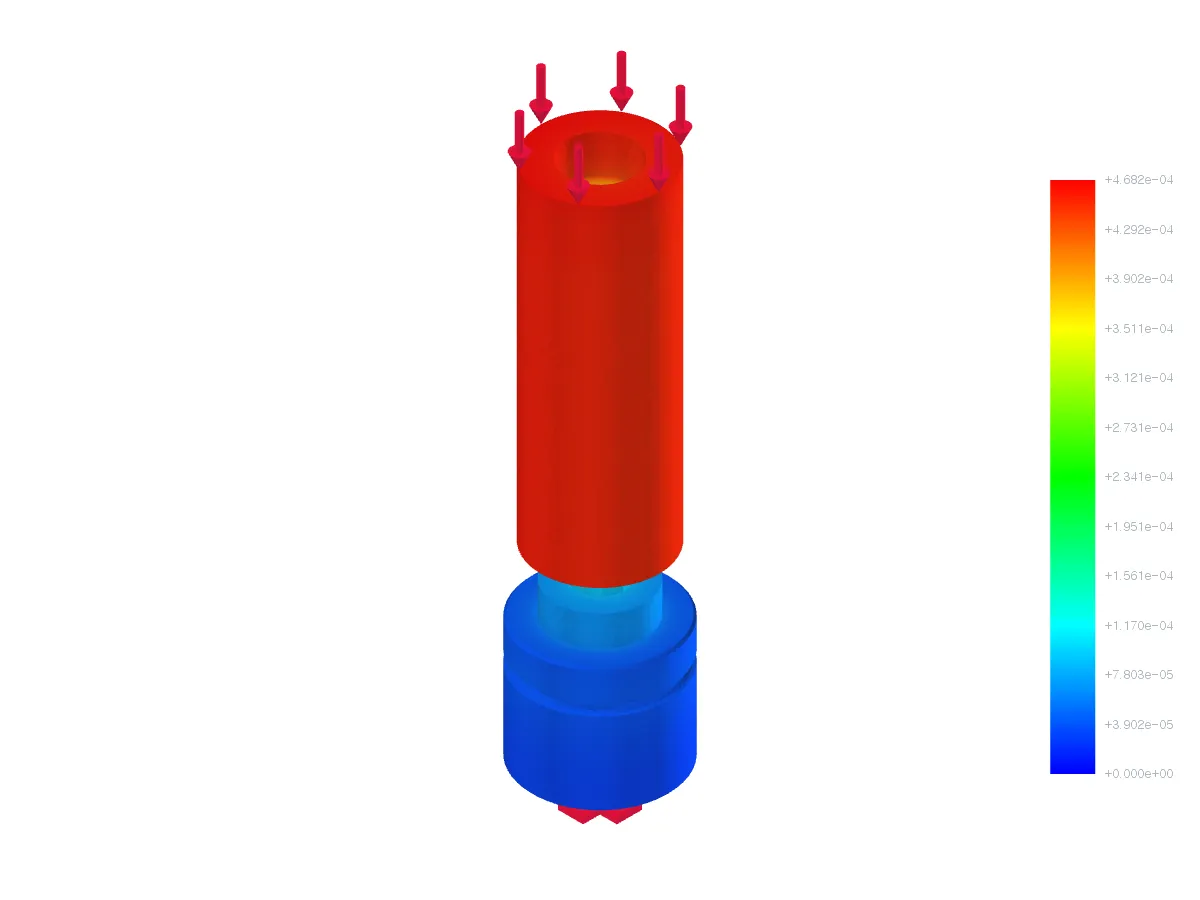
Section titled “4. Hold the connector and press with 200 kg”Hold the connector end and press the other end with 200 kg — analyse the strength.What the AI does — It settles the three inputs. Material was set in step 3; «the connector end» is the connector bottom face (z = −12, Ø16 ring, 172.8 mm²); «the other end» is the tube top (z = 246, ring of 1,708 mm²); 200 kg becomes 1,962 N in −Z. It imprints the four parts with generalFuse so touching faces share mesh nodes (fully bonded), assigns per-part materials through Gmsh solid groups, meshes with 4 mm second-order elements and runs CalculiX.
Check — A fixed area of 172.8 (the Ø16 connector ring) and a load area of 1,708 (the Ø56/Ø31 tube ring) mean the intended faces. Zero shared interface nodes would mean the parts are floating apart — look at the geometry again. Most of the 0.47 mm is the rod and base compressing, so the tube sinks as a whole and shows as one colour in the displacement map.
5. Find the real weak spot through the reinforcement candidates
Section titled “5. Find the real weak spot through the reinforcement candidates”Reinforcement candidates for a safety factor of 2, numbered — judged per material.What the AI does — It re-rates every node as «stress ÷ that part’s yield strength», drops spikes right next to the fixed face as singularities, and picks the hotspot. In this model that is the edge of the Ø16 bore in the base bottom (where the connector flange meets it, z = 0) at 46.9 MPa in POM.
Check — The real load path is tube → plug → rod (Ø22/Ø10, section 302 mm²) → neck → base → connector. The nominal compressive stress in the rod is 1,962 ÷ 302 ≈ 6.5 MPa, a tenth of the 65 MPa yield, consistent with p99 = 10.3 MPa. Both 46.9 and 55.5 are numerical concentrations at sharp interface corners — the singularity candidate 5 is describing. The conclusion is “200 kg does not yield the part; the places to watch are the connector flange and the base bore edge, which get a radius on the real part”. If you want proof, say “5, mesh 3 mm” — about 300,000 nodes and three to five minutes.
Checking the result
Section titled “Checking the result”| Item | Success criteria |
|---|---|
| Reading the drawing | Scale 1.9036 pt/mm; 11 read values and 6 «assumed» rows, clearly separated |
| Model | Four bodies, bbox 65 × 65 × 258, no interference, volume 412,909 mm³ ±1 % |
| Material cards | POM-Homopolymer-Generic × 3, Brass × 1 |
| Analysis setup | Fixed 172.8 mm², load 1,708 mm², shared interface nodes > 0, material groups add up to all elements |
| Analysis | Maximum von Mises 55 MPa ±10 % (connector flange), displacement 0.47 mm ±10 %, singularity warning with p99 safety factor above 6 |
| Reinforcement | Hotspot chosen «per material» (base bore, 1.39 against POM), mesh candidate explains the singularity |
When it does not work
Section titled “When it does not work”- The AI says it cannot read the dimensions — in this PDF the text is lines too. Give it the order: “look at the page as an image and read the written dimensions, then fix the scale from line coordinates and measure the rest”.
- The scale does not fit — if the scale from one dimension (Ø56) disagrees with others (157, 258), the PDF is a scaled print. Get the original.
- An error says the parts overlap — «does not correspond to any part» during setup means two parts cut into each other. Ask for an interference check to see where and fix the dimensions.
- Zero shared interface nodes — faces you thought were touching are apart (for example the neck height does not meet the base). Match the z ranges in the bboxes.
- More than 300,000 nodes — ask for a 5–6 mm mesh. This model has 139,000 nodes at 4 mm.
- It is marginal but you cannot tell where — add “judged per material” as in step 5. When the overall maximum is in a metal part, it re-picks the hotspot for the plastic parts.
Going further
Section titled “Going further”- Apply 200 N in +X on the side instead of the top to see bending. On a curved face (the tube side) the AI tells you it switches to a curved-surface mesh.
- Add “R1 fillets on the base bore edge and the connector flange corner” and solve again to see how far the maximum drops.
- Rebuild with “baffles at Ø45 as drawn” so they touch the tube — more bonded faces — and compare the results.
- “Export the tube, core and base as STEP” to make files for the machine shop.
What runs behind the scenes
Section titled “What runs behind the scenes”| Step | Tool |
|---|---|
| Reading the drawing | PDF render → image reading, vector line extraction (scale, interior dimensions) |
| Building the four parts | build_features (revolution, groove, pocket, params) |
| Interference, mass | check_interference, get_mass_properties (names, densities) |
| Background, transparency, material cards | execute_code (View preferences, ViewObject.Transparency, Materials.MaterialManager → ShapeMaterial) |
| Analysis setup | setup_analysis (names, per-part material, fixed=["bottom"], loads=[force on top, 1962 N]) |
| Solve, summary, colour map | run_analysis → get_screenshot |
| Displacement view | inspect_results (field="displacement", show) |
| Reinforcement candidates | suggest_reinforcement (hotspot_selection explains per-material and singularity exclusion) |
| Save, STEP | save_document, execute_code (exportStep) |
Source of the procedure: CLAUDE.md “Structural analysis (FEM) workflow”