Exercise 3. Building a board from a PCB DXF
| Item | Detail |
|---|---|
| Input files | 03-MYB-6ULX_2D.dxf, 03-MYS-6ULX_2D.dxf |
| Time | 3 min (8 seconds to build both boards) |
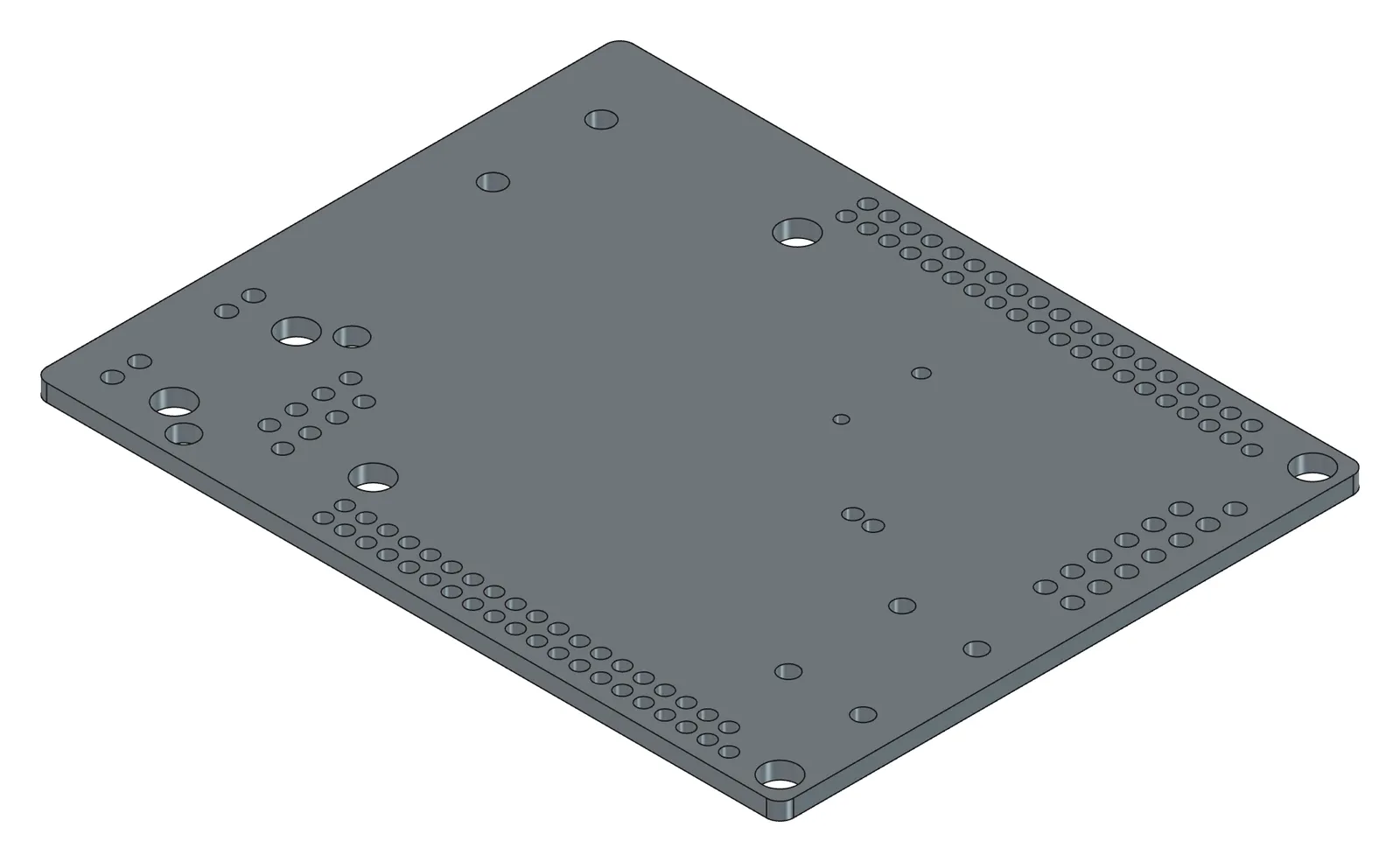
| What you end up with | Two documents (pcb_MYB, pcb_MYS), each with one board Body (1.6 thick, Ø3.3 mounting holes as a parameter) |
| What you learn | How to have only the layers you need read out of a DXF, how a polyline’s rounded corners (bulge) become arcs, and how to split holes by type |
To fit a PCB into an enclosure you need a 3D board with just the outline and the mounting holes. A DXF contains hundreds of things — silkscreen, dimensions, vias — so the heart of this exercise is getting only what you need read.
Original and finished
Section titled “Original and finished”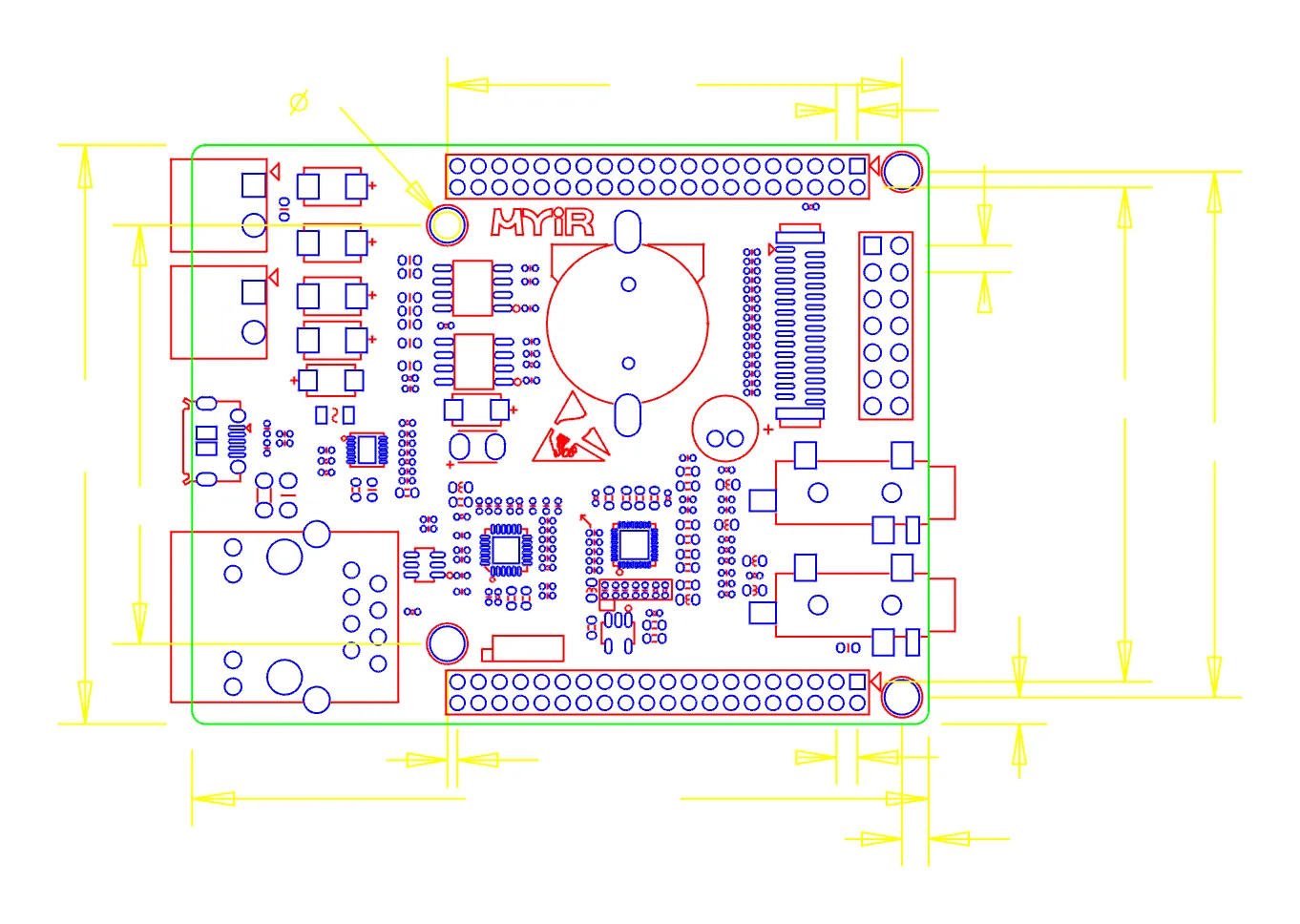
| File | Description | Size | |
|---|---|---|---|
| Original | 03-MYB-6ULX_2D.dxf | DXF | 479 KB |
| Original | 03-MYS-6ULX_2D.dxf | DXF | 461 KB |
| Finished | 03-pcb_MYB-done.FCStd | MYB board | 91 KB |
| Finished | 03-pcb_MYS-done.FCStd | MYS board | 79 KB |
| Finished | 03-MYB_6ULX-done.step | STEP | 200 KB |
| Finished | 03-MYS_6ULX-done.step | STEP | 173 KB |
- Launch FreeCAD 1.1.3. You want
[CAD X-ray] 서버 시작in the Report view. - Put both DXF files in
C:\cad\. - In PowerShell, move to
C:\cadand openclaude. - Do not open the DXF in FreeCAD yourself (no File → Open). The reason is in step 1 below.
1. Have it read the DXF and give you a table first
Section titled “1. Have it read the DXF and give you a table first”Read C:\cad\03-MYB-6ULX_2D.dxf (directly from the file, not through FreeCAD) and show me a table of element counts per layer, the outline polyline, and circle counts per diameter.What the AI does — reads the DXF directly (ezdxf or plain text parsing) and pulls the POLYLINE entries (layer, closed flag, vertices and bulge) and CIRCLE entries (layer, centre, radius) from the ENTITIES section. Through FreeCAD’s DXF import, hundreds of silkscreen and dimension polylines each become a Draft object, which took over two minutes on MYB-6ULX when measured — hence “not through FreeCAD”. Three things should appear in the table without being asked: whether OUTLINE is closed, whether the bulges are 90° arcs, and which circles look like mounting holes.
How to check — if the OUTLINE polyline is “closed” and the bulge values are near 0.4142, the board has corners rounded by 90° arcs. Six Ø3.3 circles is correct: four are mounting holes near the board corners and two belong to the connector on the left.
2. Give it the rules and have it build both boards
Section titled “2. Give it the rules and have it build both boards”Outline is the OUTLINE polyline as-is (bulges become arcs), holes are circles of radius 0.5 or more only, one per centre where they overlap, only the four corner Ø3.3 are mounting holes as Params.mount_d, thickness 1.6 as Params.thickness. Build both boards with those rules: Body MYB_6ULX (Label MYB-6ULX) in pcb_MYB, and 03-MYS-6ULX_2D.dxf as MYS_6ULX (Label MYS-6ULX) in pcb_MYS. Features PadBoard → PocketMount → PocketPins.What the AI does — solves each bulge b into an angle θ = 4·atan(b), turning the span between two vertices into an arc (the arc centre lies to the left of the direction of travel), transfers the 4 lines + 4 arcs into a sketch at DoF 0, then stacks one Pad and two Pockets in order. Circles are filtered by radius and centre into mounting holes and component pin holes. Once the rules are set, a board in the same family only needs new names.
How to check — in the tree, PadBoard, PocketMount and PocketPins should be in black text (no errors), and viewed from above (number key 2) the four corners should be rounded. The Params sheet holds thickness and mount_d (width, height and corner_r are there for reference — the outline itself uses the DXF elements directly). Put the two documents side by side (Windows → Tile) and see how the pin hole layouts differ.
3. Look, then save
Section titled “3. Look, then save”Show me iso views, and if they look right save them to C:\cad\pcb_MYB.FCStd and C:\cad\pcb_MYS.FCStd.How to check — you should see the board thickness in the screenshot and the holes going all the way through.
Checking your result
Section titled “Checking your result”| Criterion | Value |
|---|---|
| Outline sketch | 8 elements (4 lines + 4 90° arcs), DoF 0 |
| Mounting holes | Ø3.3 × 4, Params.mount_d |
| Thickness | 1.6, Params.thickness |
| Shape validity | valid |
| Features | PadBoard → PocketMount → PocketPins |
When it doesn’t work
Section titled “When it doesn’t work”- Nothing happens for over two minutes — the AI used FreeCAD’s DXF import after all. Wait for it to finish (it cannot be interrupted) and ask again with “don’t open the DXF in FreeCAD, read the file directly”.
- The outline doesn’t close and the Pad fails — the OUTLINE polyline may be in several pieces, or under a different layer name (
Edge.Cuts,BOARD). Pick the layer with a closed polyline from the table in step 1 and name it. - Too many holes — raise the 0.5 radius threshold. Redefine it: “only radius 1.0 and above”.
- The mounting holes aren’t Ø3.3 — boards vary (Ø3.2, Ø3.5). Look at the radii in the step 1 table and specify: “treat radius 1.6 as the mounting holes”.
- The arcs are inverted and the corners cut inward — a bulge sign interpretation problem. Say “check the OUTLINE arcs bulge outward and fix the inverted ones”.
Going further
Section titled “Going further”- Build a “with components” outline Body by adding 15 mm of component height clearance above the board, and use it for enclosure interference checks (see the interference check in Exercise 4).
- Change
Params.mount_dto 3.5 for looser mounting holes. - Export both boards as STEP for your enclosure designer. “Export MYB_6ULX to C:\cad\MYB.step” is enough.
| What runs behind the scenes | |
|---|---|
| Reading the DXF | The AI tool itself (parsing POLYLINE and CIRCLE with stdlib, converting bulge to arcs) |
| Building the model | build_features (elements profile + circles, Params aliases) |
| Checking | inspect_object, get_screenshot, save_document |
Original session log: https://github.com/WaveSimm/cadxray/blob/master/examples/pcb_from_dxf.py