Exercise 7. Making a 2D drawing
| Item | Detail |
|---|---|
| Input files | The plate from Exercise 1 (with four holes) as FCStd, or any Body |
| Time | 3 min (the page takes seconds) |
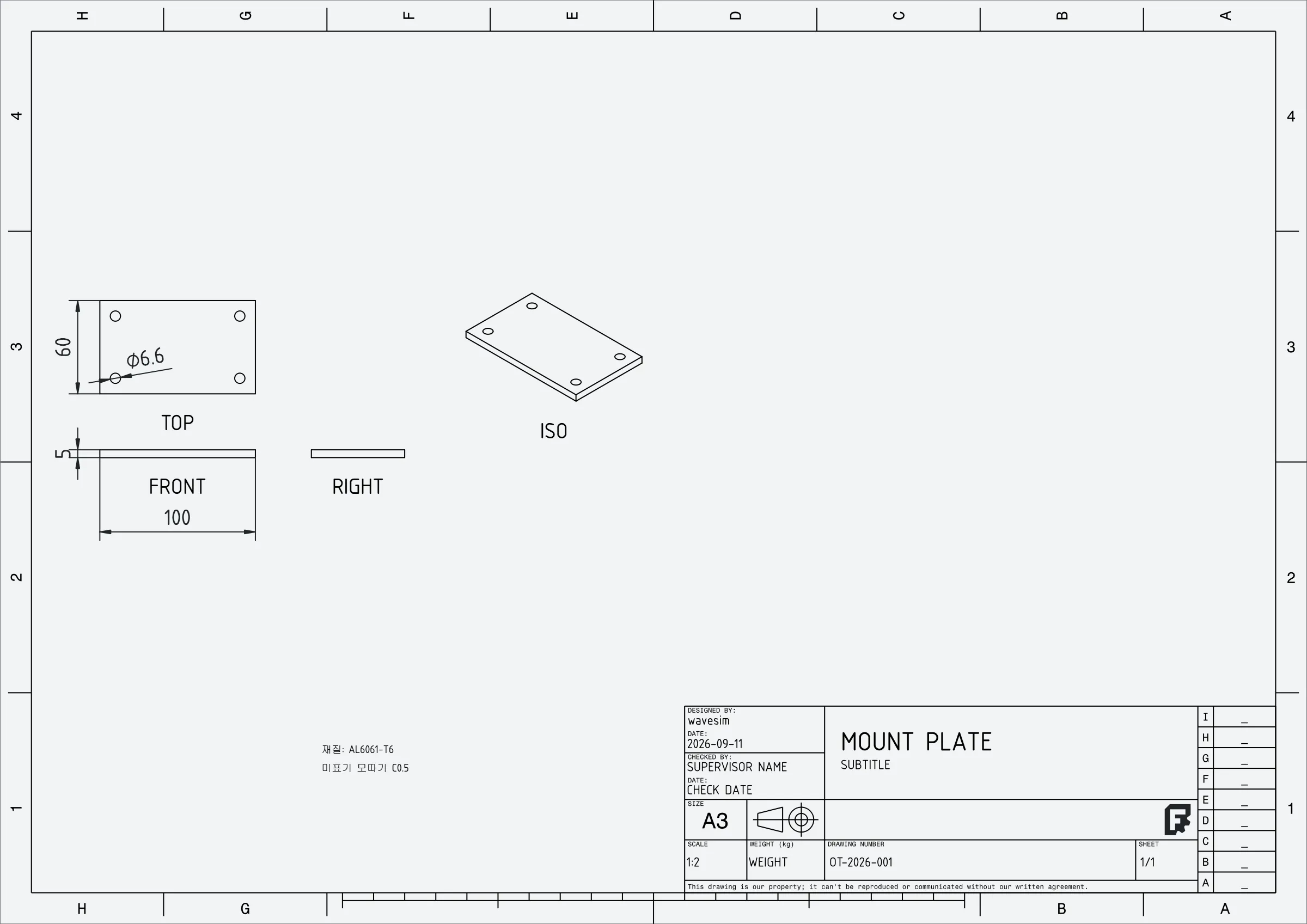
| What you end up with | One ISO A3 landscape TechDraw page (front, right, top and isometric + 4 dimensions + notes + title block) and a PDF |
| What you learn | Specifying views, dimensions, notes and the title block in words; confirming the dimension values match the model; fixing overlapping layout |
Once the 3D model is done you need a 2D drawing to send out for machining. Doing it by hand in the TechDraw workbench means creating the page, adding views, setting the scale and adding dimensions one at a time. In this exercise you state only «which views, which dimensions, which notes» and the AI builds the page and exports the PDF. Dimension values are measured straight off the model vertices, so nothing gets mistyped in transcription.
Original and finished
Section titled “Original and finished”The original is the plate from Exercise 1 (100×60×5, Ø6.6 × 4). If you do not have it, build it with step 0 below.
| File | Description | Size | |
|---|---|---|---|
| Original | 01-plate-done.FCStd | The finished plate from Exercise 1 | 15 KB |
| Finished | 07-MOUNT_PLATE-done.pdf | That page exported as PDF | 157 KB |
- Launch FreeCAD 1.1.3 and confirm
[CAD X-ray] 서버 시작in the Report view. - Open your AI tool.
- Open the plate file you saved in Exercise 1 (File → Open). If you do not have it, ask the AI to build it in the first step below.
0. (If you don’t have the plate) Build it
Section titled “0. (If you don’t have the plate) Build it”New document, Body Plate: 100×60×5, four Ø6.6 through holes 10 in from each corner.1. Check the model and read the positions to dimension
Section titled “1. Check the model and read the positions to dimension”Plate's bbox and the hole positions and diameters, for the drawing dimensions.What the AI does — analyses the shape and reads the bounding box (0–100, 0–60, 0–5) and the centres and diameters of the four holes. Drawing dimensions are specified by «model vertex coordinates», so you need these values.
How to check — confirm the size the AI reports matches what you specified in Exercise 1.
2. Build the three-view + isometric page
Section titled “2. Build the three-view + isometric page”2D drawing of Plate. Views front, right, top, iso. Dimensions: overall length 100 and thickness 5 on front; overall width 60 and one Ø6.6 hole on top. Notes "Material: AL6061-T6", "Unmarked chamfers C0.5". Title block: name "MOUNT PLATE", number "OT-2026-001", author my name. Auto scale, export PDF.What the AI does — creates the page on the ISO A3 landscape template, adds the four views, and picks a standard scale (1:1, 1:2, 1:5 and so on) so the views fill about 60 % of the page. For «overall length» it dimensions between the minimum and maximum x vertices; for «hole diameter» it uses the hole centre and radius; the values are measured off the model. It fills in the notes and title block text and exports the PDF.
How to check — a Page appears in the FreeCAD tree and double-clicking it opens the drawing. Look at three things in the AI’s answer.
- That the «edge count» for each view is not 0 (0 means the view is empty)
- That each dimension’s «value» matches the model (100, 5, 60, 6.6)
- Whether the warnings mention anything «skipped» (dimensions whose vertices could not be found get skipped and noted)
The image in «Original and finished» above is the page this step produces.
3. Tidy up overlaps and positions
Section titled “3. Tidy up overlaps and positions”The default layout is approximate. Dimensions that overlap a view label or another dimension get nudged out automatically, but if you dislike the result there are two ways to fix it.
Move the front-view thickness dimension down 15 and the iso view to the top right.Or drag the views and dimensions with the mouse in the drawing window. After moving things you have to export the PDF again.
Export the PDF again as it is.4. Add a detail view (optional)
Section titled “4. Add a detail view (optional)”Add detail view A at 2:1, radius 12 around the top-left hole of the top view, with the hole diameter dimension.What the AI does — creates a circular detail view based on the top view and changes its scale. Dimensions in the detail view are measured the same way, from model vertices.
5. Inspect the page
Section titled “5. Inspect the page”Inspect the page for empty views or broken dimensions.What the AI does — reads the page’s views, dimensions, notes and title block and finds views with 0 edges, dimensions whose state is Invalid (broken references), and anything needing a recompute (Touched).
How to check — if it says “no problems”, open the PDF and look at it. The PDF path is in files.pdf in the AI’s answer.
Checking your result
Section titled “Checking your result”| Item | Success criterion |
|---|---|
| Page | One ISO A3 landscape, all 4 views (5 with a detail) with edge count > 0 |
| Dimensions | All 4 in a normal state, values = model values (100 / 5 / 60 / 6.6) |
| Warnings | Nothing «skipped» |
| The file exists and opens |
The cadxray repository records a 27-Link observation frame assembly producing a 5-view, 13-dimension page in 87 seconds. A single plate takes a few seconds.
When it doesn’t work
Section titled “When it doesn’t work”- A dimension got «skipped» — there is no vertex at that coordinate. Distances between cylinder silhouettes (a pipe’s outside diameter, say) have no vertices, so phrase it as “a dimension between the silhouette edges at x coordinates a and b” and it will use silhouette references.
- A view is empty (0 edges) — the source object has an empty shape, or the name is wrong. Ask “what Bodies are in this document?” to check the name.
- You want to draw an assembly (several Links) — give the name of the group containing the Links rather than a Body name. The AI compounds them and projects. With dozens of parts the projection takes over a minute, so wait.
- No PDF comes out — the page window has to be open for the export. The AI opens it automatically, but if that fails, double-click Page in the tree and ask again.
- Dimensions follow the view axes — they are measured in the direction projected into the view (DistanceX, DistanceY). If you need the true length of a sloped edge, ask for it as a «Distance».
Going further
Section titled “Going further”- Make a page for each of the two cover plates from Exercise 2 and dimension the hole pitch.
- Build an assembly drawing (2 details, 13 dimensions) from the observation frame group in Exercise 10. Time how long it takes.
- Put a company name, the date (YYYY-MM-DD) and the scale in the title block, and export as SVG as well.
What runs behind the scenes
Section titled “What runs behind the scenes”| Step | Tool |
|---|---|
| Reading vertex and hole coordinates | analyze_shape, inspect_object, find_holes |
| Page, views, dimensions, notes, title block, PDF | make_drawing |
| Inspecting the page | inspect_drawing |
The procedure in full: CLAUDE.md, the «2D 도면 워크플로» section · a hand-built record: examples/techdraw_page_from_assembly.py