Exercise 8. Print review
| Item | Detail |
|---|---|
| Input files | none (the AI builds a test box Body) |
| Time | 5 min (each check takes under a second) |
| What you end up with | A check report catching three problem types, six ranked orientation candidates, a Body with the fix features stacked on, and weight, time and cost estimates |
| What you learn | The habit of stating the profile (material, nozzle, layer, bed) first, reading check results as a numbered list, the conversation of picking orientations and fixes, and that automatic fixes are «features» and therefore reversible |
Finding out only after loading the slicer that your part needs a forest of supports, or that a wall will not print, sends you back to the design. This exercise checks and fixes the design inside FreeCAD before slicing. It does not slice.
Original and finished
Section titled “Original and finished”You can have the AI build it, or start from the practice file below.
| File | Description | Size | |
|---|---|---|---|
| Practice | 08-box-practice.FCStd | The box before checking | 15 KB |
| Practice | 08-box-practice.step | STEP | 22 KB |
- Launch FreeCAD 1.1.3 and confirm
[CAD X-ray] 서버 시작in the Report view. - Open your AI tool.
- Open a new document. Have your printer details ready: material (PLA, PETG, ABS, ASA, TPU, Nylon), nozzle diameter, layer height, bed size. If you do not know them, go with the defaults (PLA, 0.4, 0.2, 220×220×250).
1. Build the test box
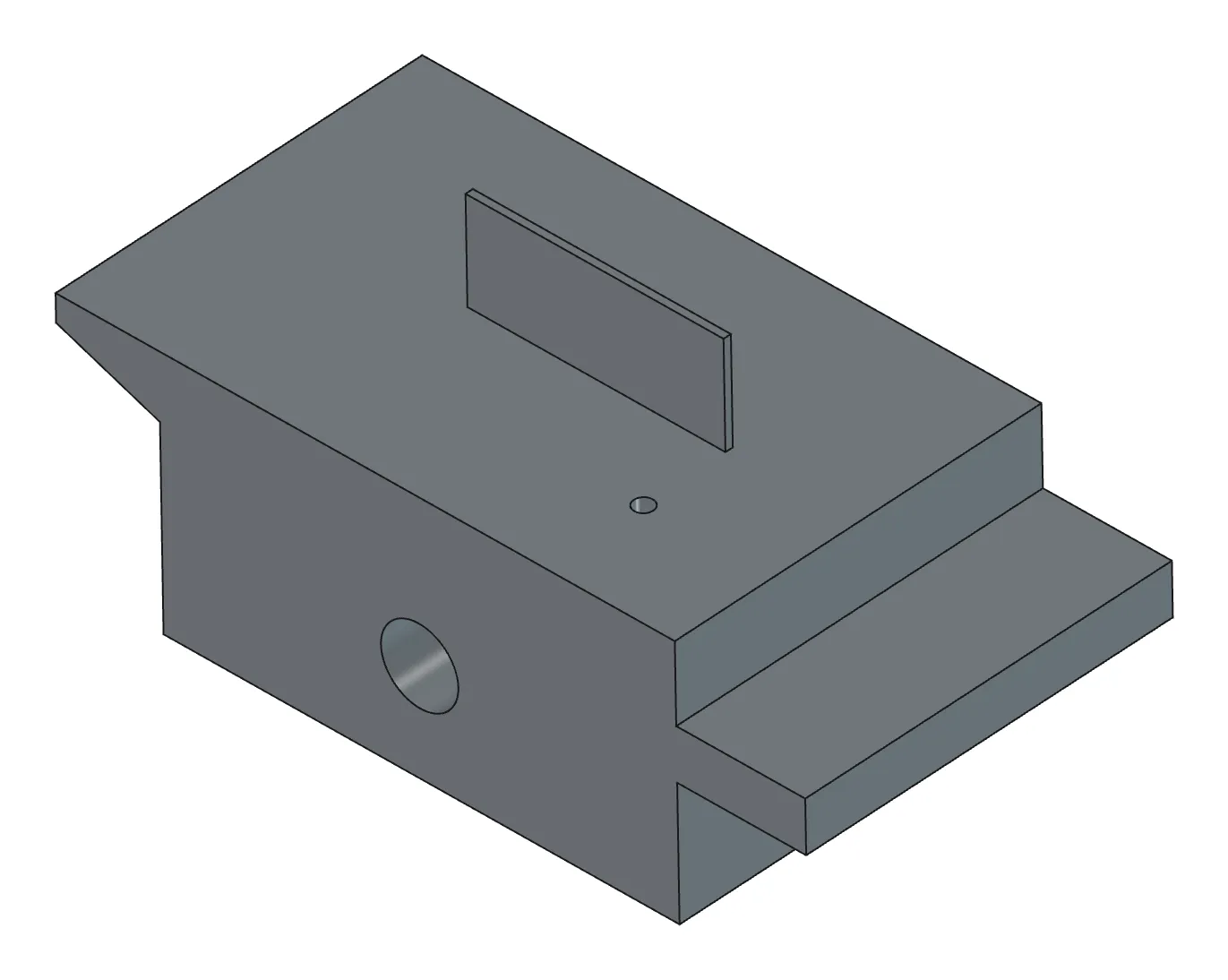
Section titled “1. Build the test box”New document, Body PrintBody as a test part:- 40×30×20 box (floor at z=0)- one rib on top, 0.6 thick, 5 tall- a cantilever reaching 10 out from one side at z=10 (3 thick)- another side face tilted to 70°- one Ø3 vertical and one Ø6 horizontal through holeCheck it's valid and show me iso.What the AI does — stacks Pads and Pockets into a Body, recomputes, checks validity and shows a screenshot. This shape is the same standard model (T12_print) cadxray used when verifying the checking feature.
How to check — PrintBody and its features are in the tree with no red marks.
2. State the profile and run the check
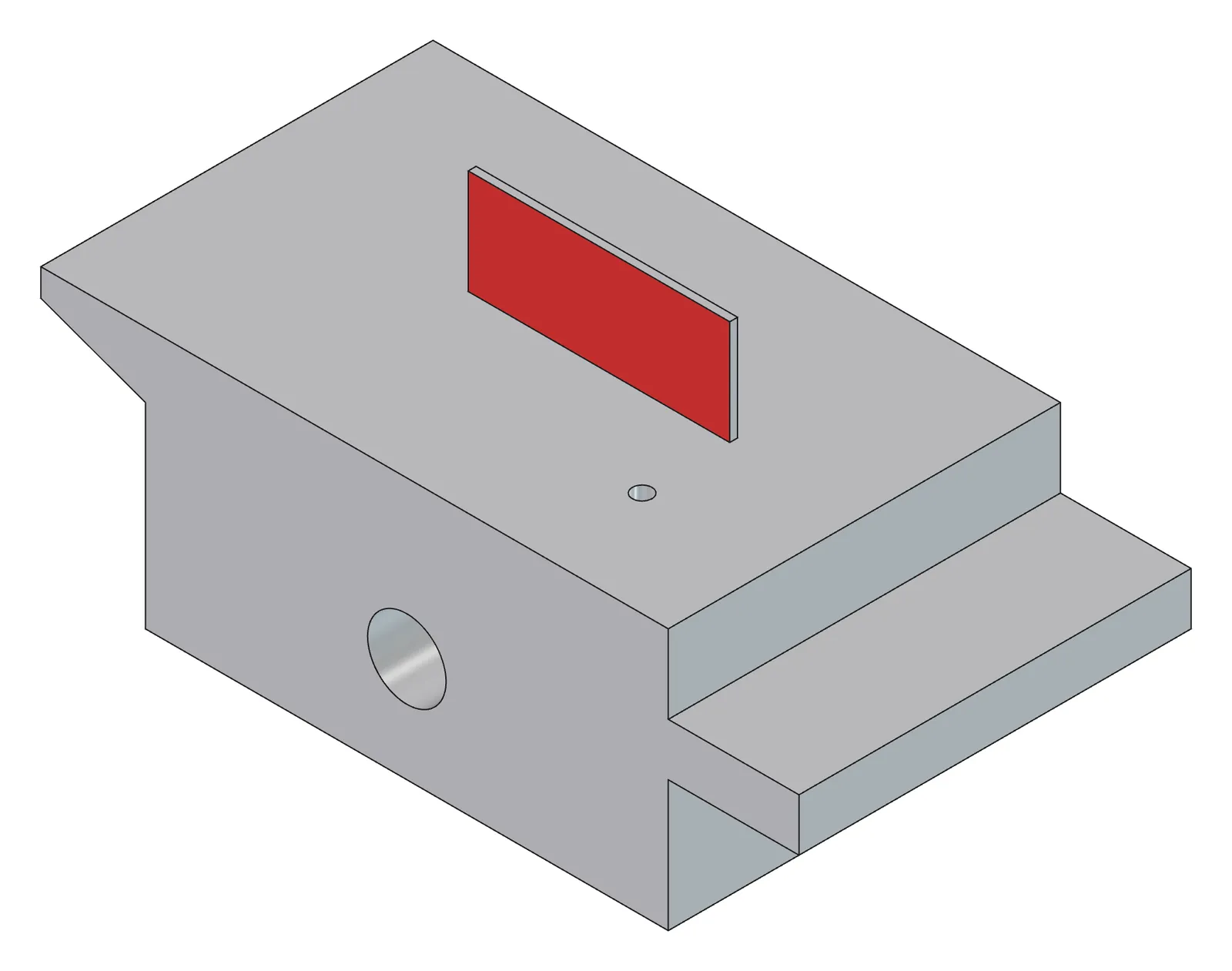
Section titled “2. State the profile and run the check”Check PrintBody for printing. PETG, nozzle 0.6, layer 0.3, bed 220×220×250, no supports. Problems as a numbered list with type, severity, location and fix.What the AI does — fills in the values the profile does not give (minimum wall thickness, overhang limit angle, maximum bridge length, hole compensation) from the material table of empirical values, and says it did so. It then converts the shape to a mesh and casts rays to check thin walls, the slope of downward-facing faces (overhangs, bridges, support area), small holes, horizontal holes, bed fit and first-layer contact area.
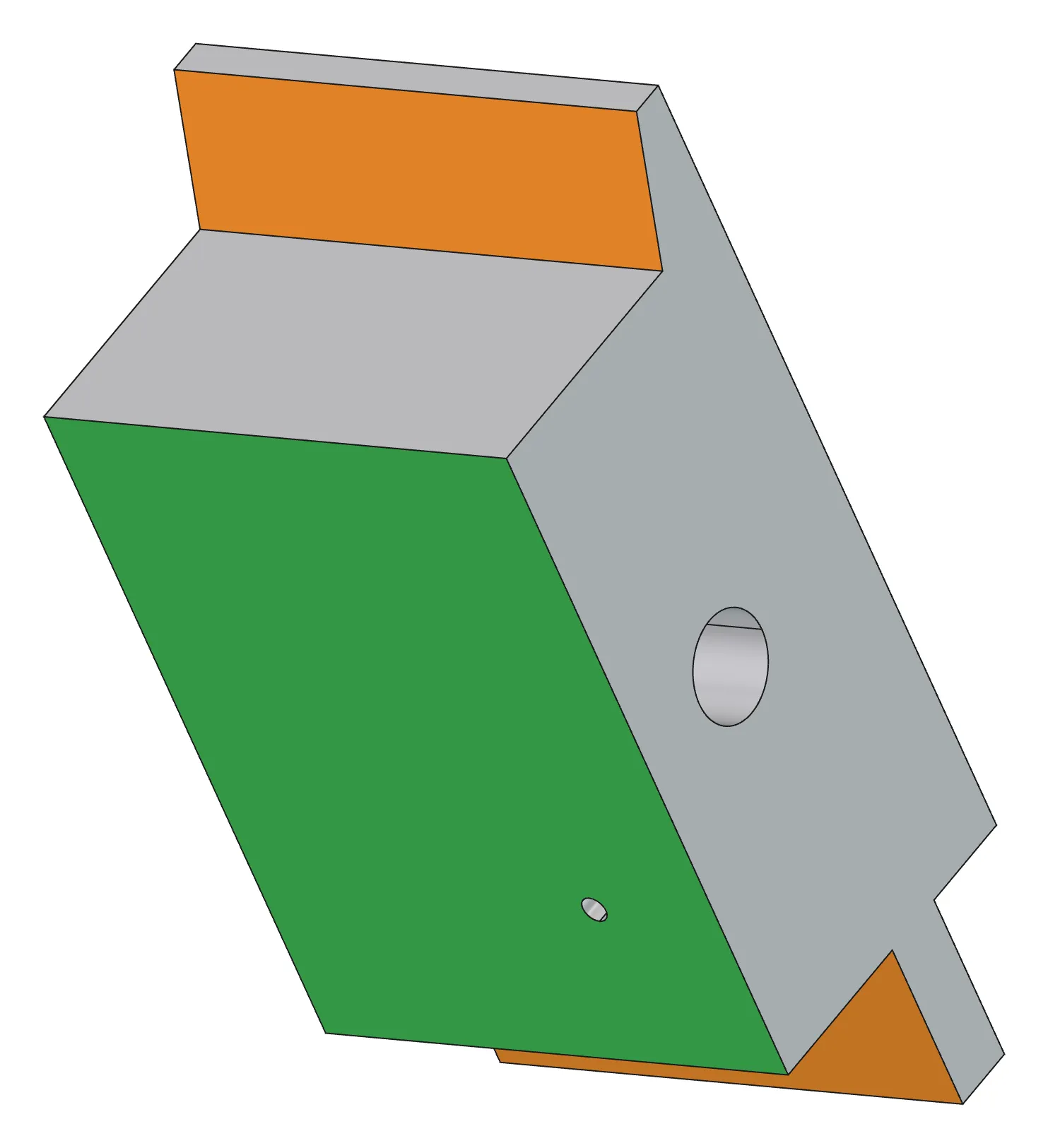
How to check — on this model, three should be caught: the thin wall, the cantilever overhang and the horizontal hole. The 70° face (inside the 45° limit), the Ø3 hole (above the 2.0 minimum) and the floor should not be.
3. Pick a print orientation
Section titled “3. Pick a print orientation”Orientation candidates, ranked.What the AI does — scores the six directions (±X, ±Y, ±Z as the floor) together with the current orientation (six candidates when the current one is among them) by support area, contact area, height and bed fit, and ranks them. The top one is usually whichever eliminates the cantilever.
Apply number 1.How to check — the part rotates in the 3D view and the floor lands at z=0. Say “check it again” and see that the cantilever overhang has gone. Since this exercise also practises design fixes, put it back to the original orientation once you have confirmed.
Put it back to the original orientation.4. Pick and apply design fixes
Section titled “4. Pick and apply design fixes”Apply thicken the rib, wedge under the cantilever, hole compensation and teardrop. Leave the tilted face alone.What the AI does — stacks each fix as a PartDesign feature. Thickening pads the thin face outward (re-measuring the thickness right before applying and skipping it if it is already sufficient); the wedge builds a helper Body filling to a 45° slope and fuses it; hole compensation is a Pocket enlarging the vertical hole by the compensation value; the teardrop is a 45° Pocket above the horizontal hole. Before applying, it tells you that «thickening grows outward and changes the outside dimensions» and «the wedge adds material and changes the weight».
How to check — new features (Chamfer, Pad, Pocket, Boolean) appear in the tree and the Body is valid. The volume before and after is in the answer. Any fix you dislike, delete its feature.
Check again, remaining problems only.How to check — thin walls should be 0 and the cantilever overhang should be gone. The teardrop’s 45° faces sit right at the limit angle and may remain as a small overhang (about 84 mm²), and the horizontal hole keeps being reported even with the teardrop in place (the check does not recognise teardrops).
5. Split it if it exceeds the bed (optional)
Section titled “5. Split it if it exceeds the bed (optional)”Pretend the bed is 30×30×30 and split PrintBody in two along x.What the AI does — cuts along the axis and creates two pieces (each 30 or under) outside the Body, hiding the original. Joining pins and slots are manual.
6. Estimate weight, time and cost
Section titled “6. Estimate weight, time and cost”In PETG, what's the weight, filament length, time and cost? 3 walls, 20 % infill, 25,000 won per kg.What the AI does — computes material volume (walls, infill, top and bottom surfaces) and reports weight (from the material density), 1.75 mm filament length, rough time and cost. It notes at the same time that this is coarser than a slicer, around ±30 %.
Checking your result
Section titled “Checking your result”| Item | Success criterion |
|---|---|
| First check | Thin wall 1 (0.6), the cantilever overhang, the Ø6 horizontal hole — three caught. The 70° face, the Ø3 hole and the floor are not caught |
| Orientation candidates | Seven, with the one that eliminates the cantilever first |
| After the fixes | Body valid, thin walls 0, cantilever support area down by more than half, vertical hole diameter grown by the compensation value, a teardrop above the horizontal hole |
| Splitting | Two pieces, each 30 or under, volumes summing to the original |
| Estimate | Weight = material volume × density |
When it doesn’t work
Section titled “When it doesn’t work”- You didn’t state a profile and it checked as PLA — with nothing given, the AI uses PLA · 0.4 · 0.2 · 220×220×250 and says so. State the material and ask again.
- The fix candidates come back as «manual» only — curved thin walls and curved overhangs are not auto-fixable. Reorient, or change the design yourself.
- A «not a Body» error — automatic fixes only stack onto a PartDesign Body. Wrap a Part imported from STEP in a Body first, as in Exercise 4.
- Thickening was «skipped» — when both faces of the same wall came back as candidates, applying one leaves the other already sufficient. That is expected.
- You want to see the results in colour — say “paint the faces with the results” and thin walls go red, supports orange, bridges yellow and floor contact green. “Restore the colours” puts it back.
Going further
Section titled “Going further”- Check the spool guide from Exercise 5 (a real part with a thread) in PLA · 0.4 and see whether the thread flanks are only counted as «minor».
- Check the same part in TPU and compare how the overhang limit angle and minimum wall change.
- Print the plate from Exercise 1 standing on its side (choose a side face as the floor from the orientation candidates) and see how the contact area and height change.
What runs behind the scenes
Section titled “What runs behind the scenes”| Step | Tool |
|---|---|
| Checking, scoring, candidates | check_printability (paint to colour it) |
| Orientation candidates and applying | suggest_orientation |
| The six design fixes | apply_print_fixes (elephant_foot · hole_comp · teardrop · thicken · overhang_chamfer · split) |
| Weight, time, cost | estimate_print |
The procedure in full: CLAUDE.md, the «3D 프린트 출력용 검토 워크플로» section